
Contents
ECCO is an online recording system used to capture essential information about the people we support and to capture support notes, contact entries and attachments. Of course, there is no ‘one size fits all’ client profile. This brochure is designed by the Online Systems Team to help you build your ECCO profiles to fit the needs of your service; it shows an example of what each profile looks like, examples of forms per service type (see relevant tabs) and an index of all current forms available.
Functionality ↗
Explains differences between form types, guides for saving and printing, history, assigning path to workers calendar, assigning task timers, groups, what is customisable and what is organisation wide, and fixed.
Implementation ↗
The process of moving from standard to bespoke profile, profile set up, pros and cons for each service on own configuration or shared design.
Learning Disability ↗
ECCO Profile overview, breakdown and screenshots of some of the forms.
Mental Health ↗
ECCO Profile overview, breakdown and screenshots of some of the forms.
Extra Care Profile ↗
ECCO Profile overview, breakdown and screenshots of some of the forms.
Examples of Forms ↗
Example of basic profile overview, which would apply to most services Screenshots of some of the forms.
Risk Flags ↗
A description of each rcurrently available on the system.
Outcome Monitoring ↗
Evidencing outcomes around risk, ECCO needs assessment, and custom forms, with screenshots.
Reporting ↗
Examples and bespoke versions, reporting journey, key reports.
Functionality
1. Types of forms:
Custom Forms
Custom forms are usually created from documents that used to be paper-based, as they are more printer friendly than questionnaires. They can also include imagery and different text styles e.g. bold or large text. The created custom form is ‘sticky’ and stays on screen unless you ‘clear form’. There is a ‘version history’ recorded (so you can look back at previous versions) but it is usually designed as a form that is completed once for a client and then just reviewed from then on (e.g. hospital passport, medication support plan). Custom forms create a PDF version for printing and for sharing with others, such as emailing to a social worker.
These are used for bespoke forms that services use in addition to the needs & risk, questionnaires, case notes etc. Custom forms are often used for forms that might previously have been paper-based.
There are various different options for answering questions, including: date boxes, single select choice lists (like yes/no), dropdown boxes, multiple choice questions, checkboxes, text areas and inbuilt text.
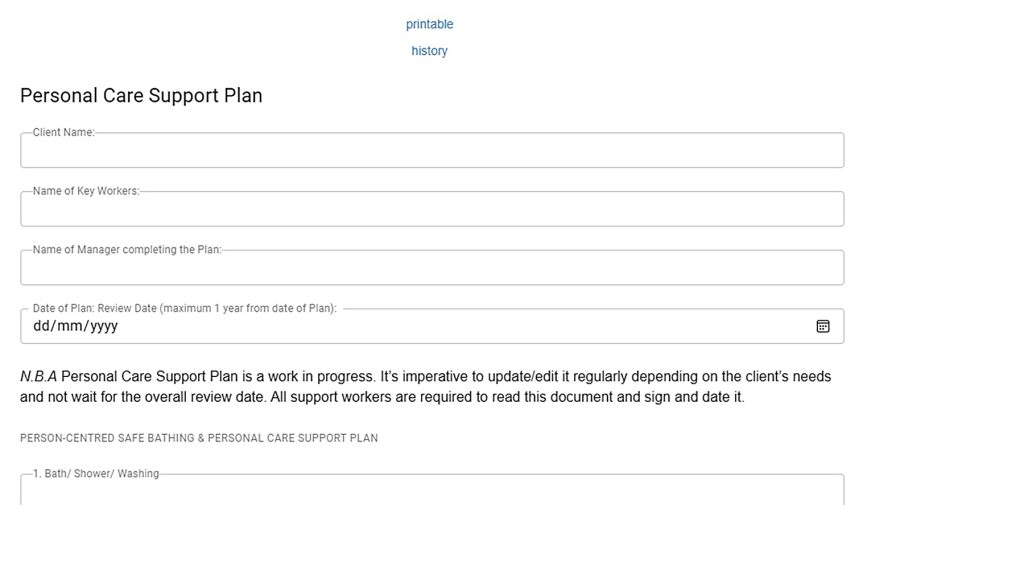
Printing custom forms and saving as a PDF
Once the custom form has been saved, you can click the ‘printable’ link at the top of the page to print the latest copy that is showing on screen. This will load up another web browser page with a printable, read only version of your form.
Questionnaires
Questionnaires are better for reporting than custom forms, because the ‘question’ groups mean something to the system. For example if you have a score based questionnaire like an outcome star – the system knows for reporting purposes that these are score-based, so can form movement reports. The completion of certain answers may give a rating e.g. low / med / high that is reportable, and shows on screen for the client. If you were to add a score / choice based question to a custom form – it decides how to display the info for you – but the code doesn’t care that you are producing a score, it just sees answers as text fields.
Questionnaires are generally created as ‘non-sticky’. This means that when the page is saved, the questionnaire becomes blank again. So they are designed to be completed on a repeat basis for the customer. You can see previous versions in the history, but they don’t print out in the same way as custom forms. You can have sticky questionnaires to keep the information on screen but ecco recommend custom forms over questionnaires because questionnaires can’t cope with text in the same way that custom forms can (unless score based).
Types of Questionnaires
- Text-based
- Score-based
- Outcome star/similar diagram based
All of these can be set up with associated reports to show the completion of questionnaires, and movement between different questionnaire responses.
Questionnaire History
Regardless of the format of the questionnaire, they all have an inbuilt history link at the top of the page that will show the audit trail of the task. For example this will be displayed in numerical format for the outcome star, rather than as a copy of the diagram. Click on the ‘history’ link to see past completions of a questionnaire screen.
Some examples of questionnaire forms:
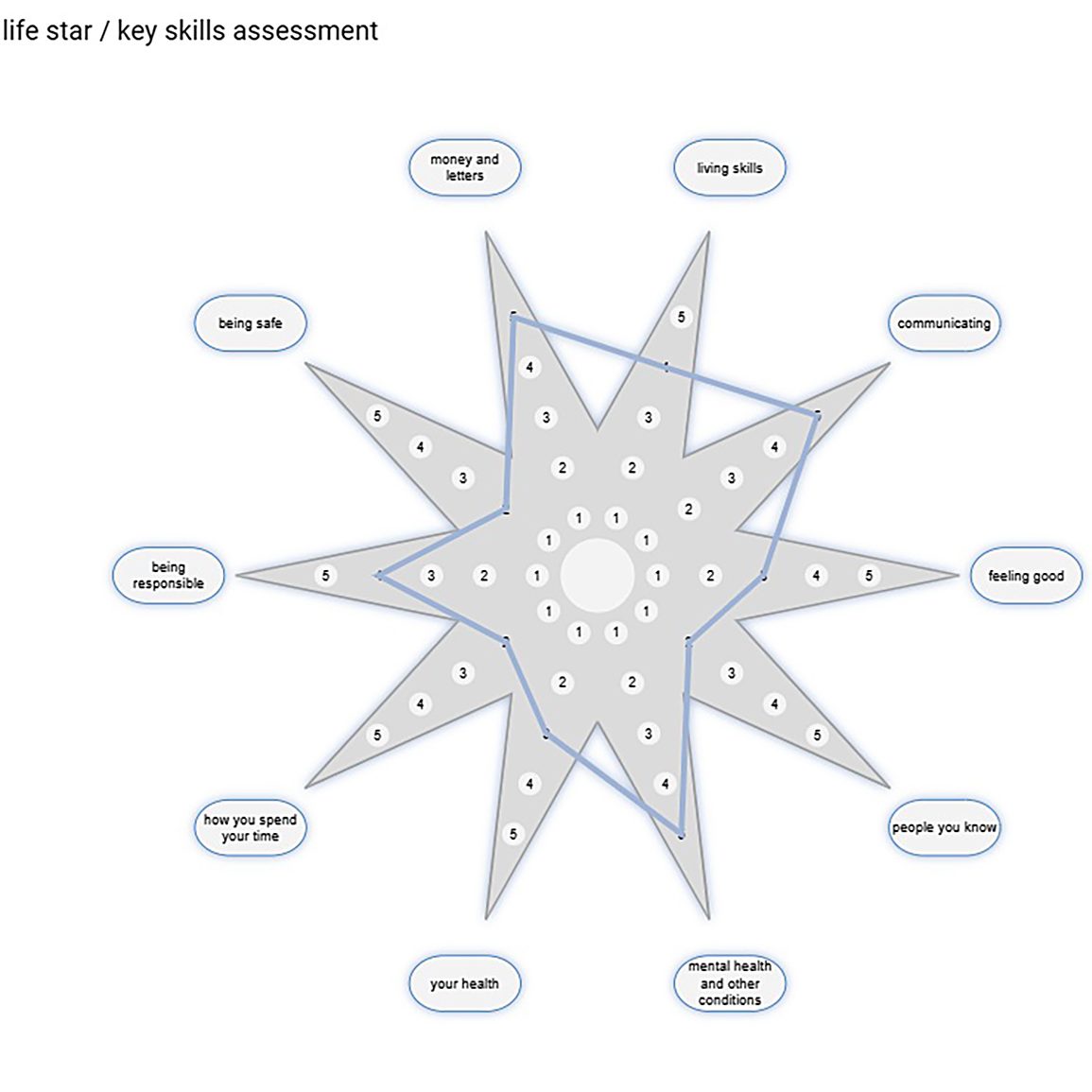
PLEASE NOTE: *Some functions/features are organisation wide – meaning they cannot
be customised (the change would be made across all services), e.g. client details.
2. Task timers for individual clients
Custom forms are usually created from documents that used to be paper-based, as Forms on an individuals’ profile can be set as tasks, with a due date and also the option to assign a worker. Tasks appear on the left-hand side, and timers on the right. The righthand side displays key information such as date & time stamps for when tasks were last updated.
Green clocks show where a task has a timer (that is currently “in date” / “not due”).
Orange clocks show a task with a timer due in 7 days.
Red clocks show a task with a timer that is overdue.
(Hovering over the timer with your mouse will show the due date and the user it is assigned to).
Task timers can also be set to repeat.
3. Groups quick guide
The left-hand pane (in red) on the ECCO landing page, contains a group support function as pictured below:
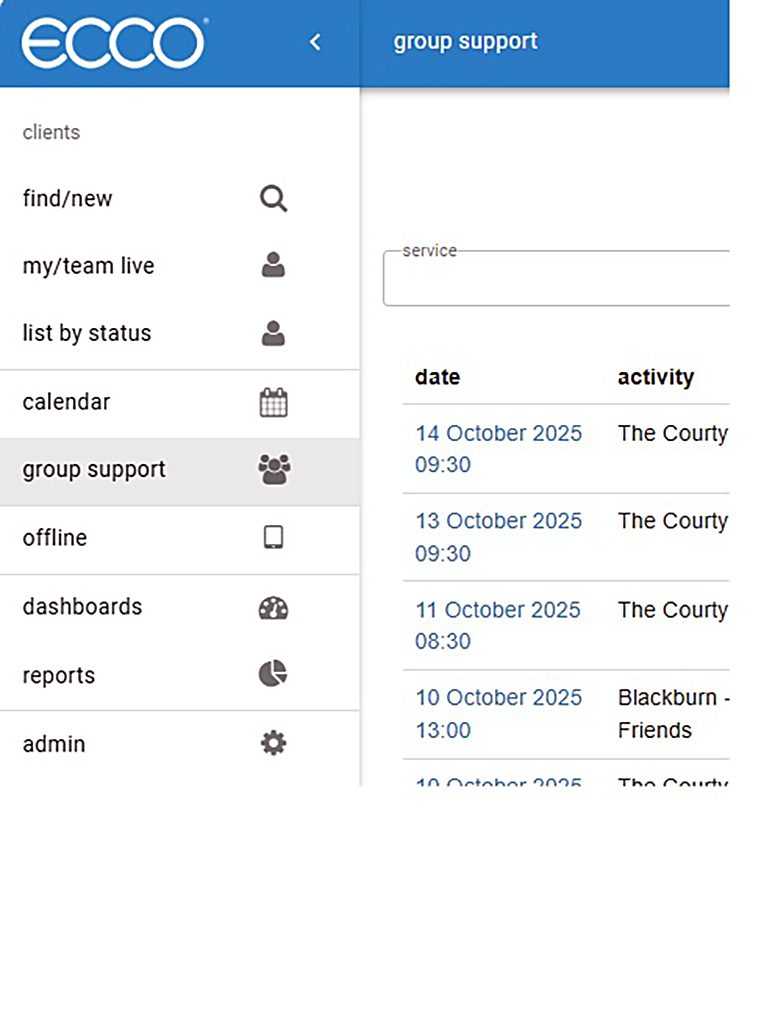
You can create a new session by clicking into this function and then ‘NEW SESSION’, then entering all relevant details.
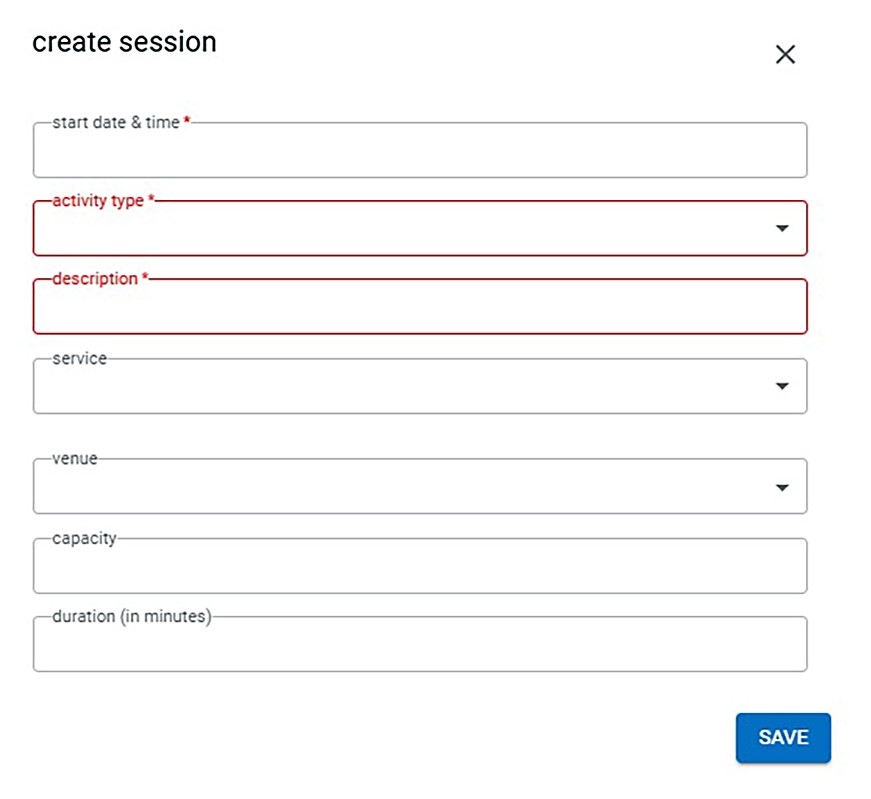
You can then find the activity in the list by filtering with the drop downs.

To invite attendees click into the date and time link. This pulls up a list of clients and checkboxes that you can tick to say invited/attended
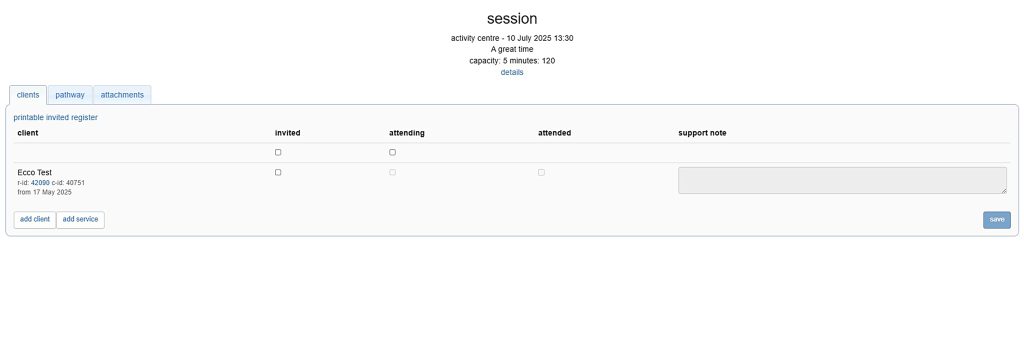
You can go back into this section to mark as attended and add support notes.
Implementation
This section explains the process of moving from standard to bespoke profile and how profile will be set up. Prior to a digital transfer, there are some considerations:
- What is your current workforce rate and would it be better to wait until more staff are recruited at the service?
- Are your staff on board with using digital files rather than paper file and if not, would staff engage with training?
- Are there people within the team who can ‘champion’ the changes and help other staff day to day within the service?
- At this point in time, are there any issues within the service that could impact implementation of the ECCO service profile development?
1
- Initial contact with the Online Systems Team, futher to discussions in advance with your team
- The Online Systems Team will have an initial meeting with you to consider your service needs from ECCO, we will demonstrate the different profile options
2
- Review your resources and facilities e.g. Wifi and laptop requirements
- Request any hardware required, you do this by completing a Goods Req. form and send to the following email address: Laptop.andDesktoporders@creativesupport.co.uk
- For Wifi support, or any work phones for staff for MFA (if they prefer not to use their personal devices), please contact telecoms@creativesupport.co.uk
To Note
- Profile development requests will mean your service profile will move from the standard Creative Support shared design to a bespoke configuration and all individuals’ profiles across the service will move to the new configuration (we suggest only adding forms if they would apply across a third of the profiles)
- If you are looking at mulitple service profiles, these can be set up to be on their own shared configuration or separately. If wanting services
3
- ECCO will build your service profile according to your specifications, typical turn around is 2 weeks
- Once completed by ECCO, your profile developments will go live and we will ask you to let us know how the changes are working for you, and any amendments or connected requests
- We can run training for staff who may need support in the changes
4
- Service transfer paper files onto the ECCO digital system
- Any further development requests or support will be dealt with by the Online Systems team. We can be reached by phone through Head Office ext. 621, or by email (onlinesystemsqueries@creativesupport.co.uk)
Learning Disability Profile
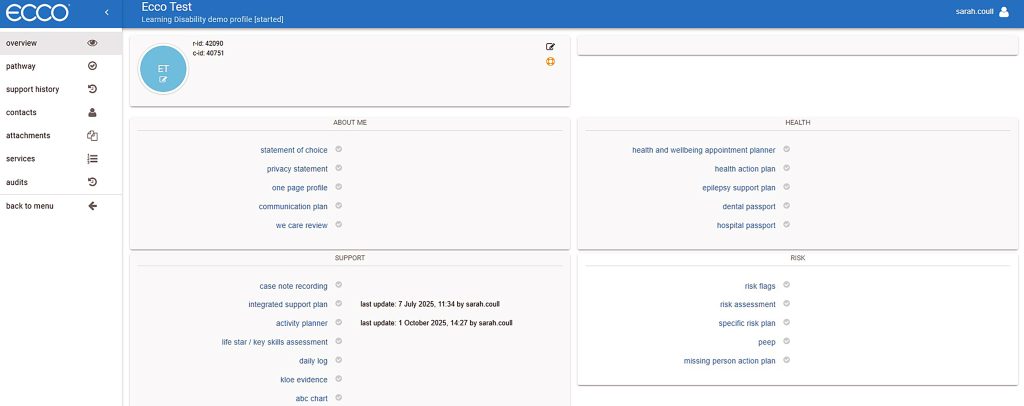
This first image is how the profile might look for an individual with a Learning Disability. Below you’ll also see some examples of the forms listed, one from each section.
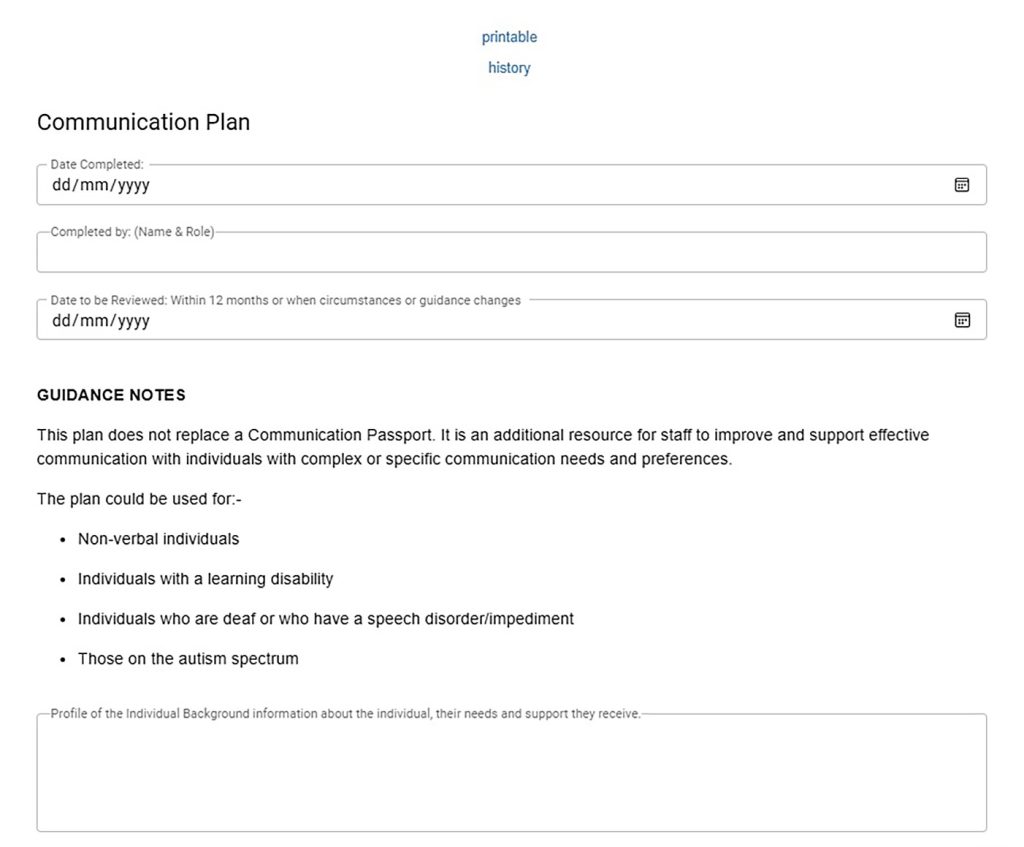
Communication Plan
This form allows entry of:
- Background profile, why a communication plan is needed
- How the person communicates and whether or not tools or objects are used
- Guidance for successful communication and do’s and don’ts
- Times when communicating might be difficult
- Signs, gestures, words or actions that are important and specific to the individual
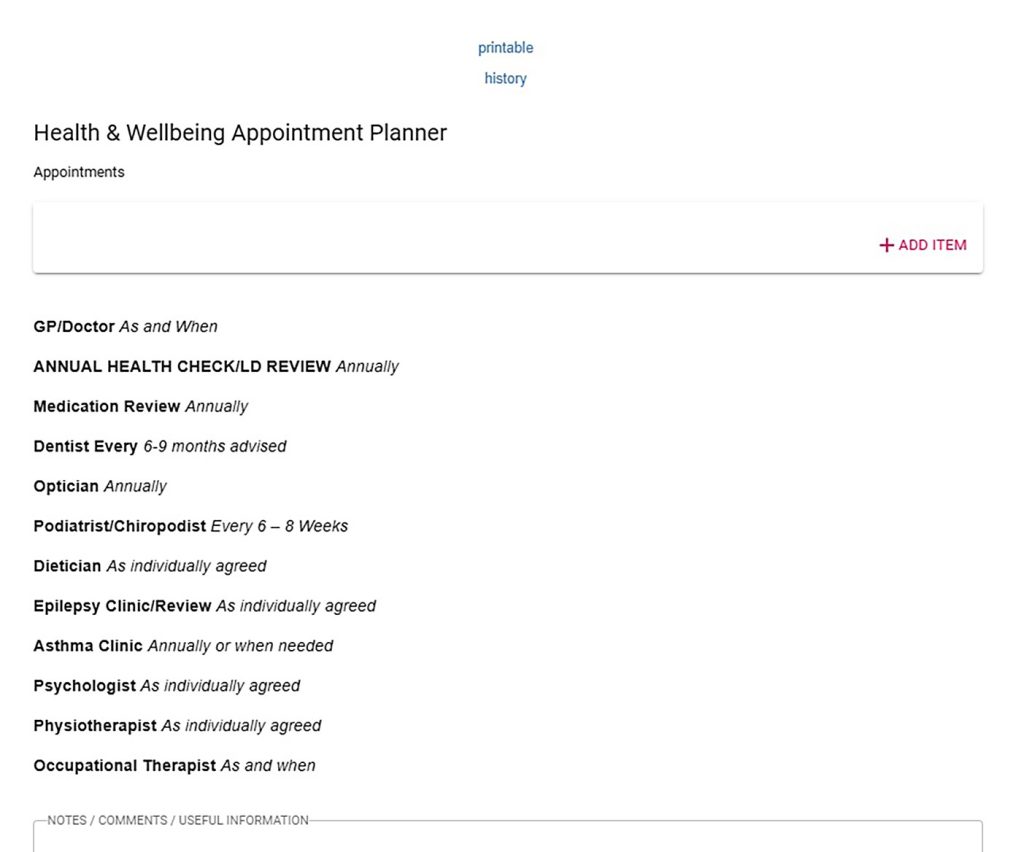
Health and Wellbeing Appointment Planner
This form allows entry of:
- Regularity of visits for: GP/Doctor, Annual Health Check/LD Review, Dentist, Optician, Podiatrist/ Chiropodist, Dietician, Epilepsy Clinic/Review, Asthma Clinic, Psychologist, Physiotherapist, Occupational Therapist
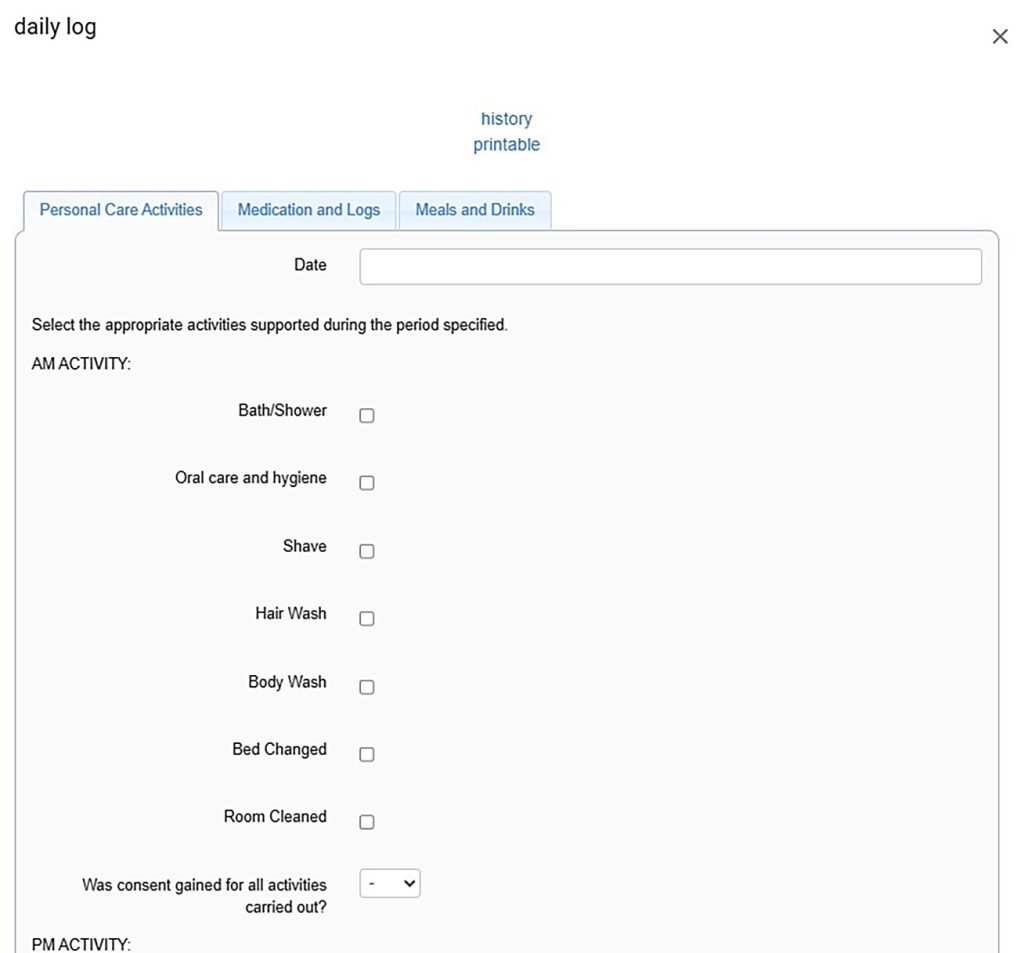
Daily Log
This form allows entry of:
- Personal care activities (AM, PM, comments, when they took place, minutes spent, type of support, attachments)
- Medication and Logs (including date and time of all medication provided and other information such as incidents or accidents, comments, when they took place, minutes spent, type of support, attachments)
- Meals and drinks (breakfast, lunch, tea, supper, snacks including choice given, what was eaten, comments, when took they place, minutes spent, type of support, attachments)
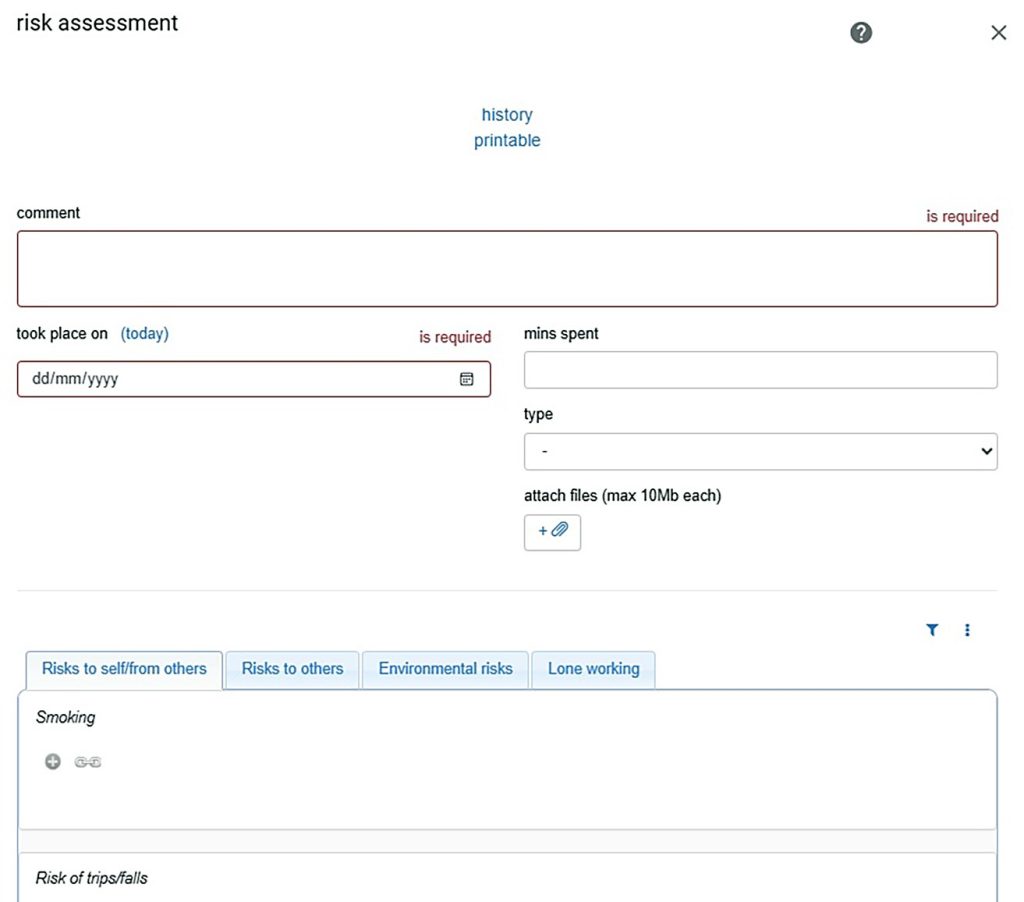
Risk Assessment
This form allows entry of:
- List of tick boxes to specify risks
- Risks to self/from others
- Risks to others
- Environmental risks
- Lone working
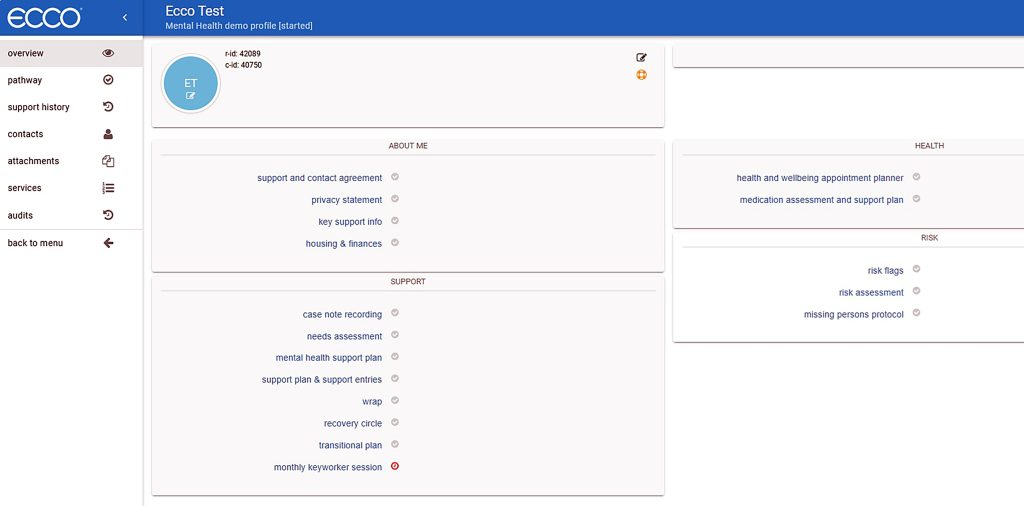
Mental Health Profile
This first image is how the profile might look for an individual suffering with their Mental Health. Below you’ll also see some examples of the forms listed, one from each section.
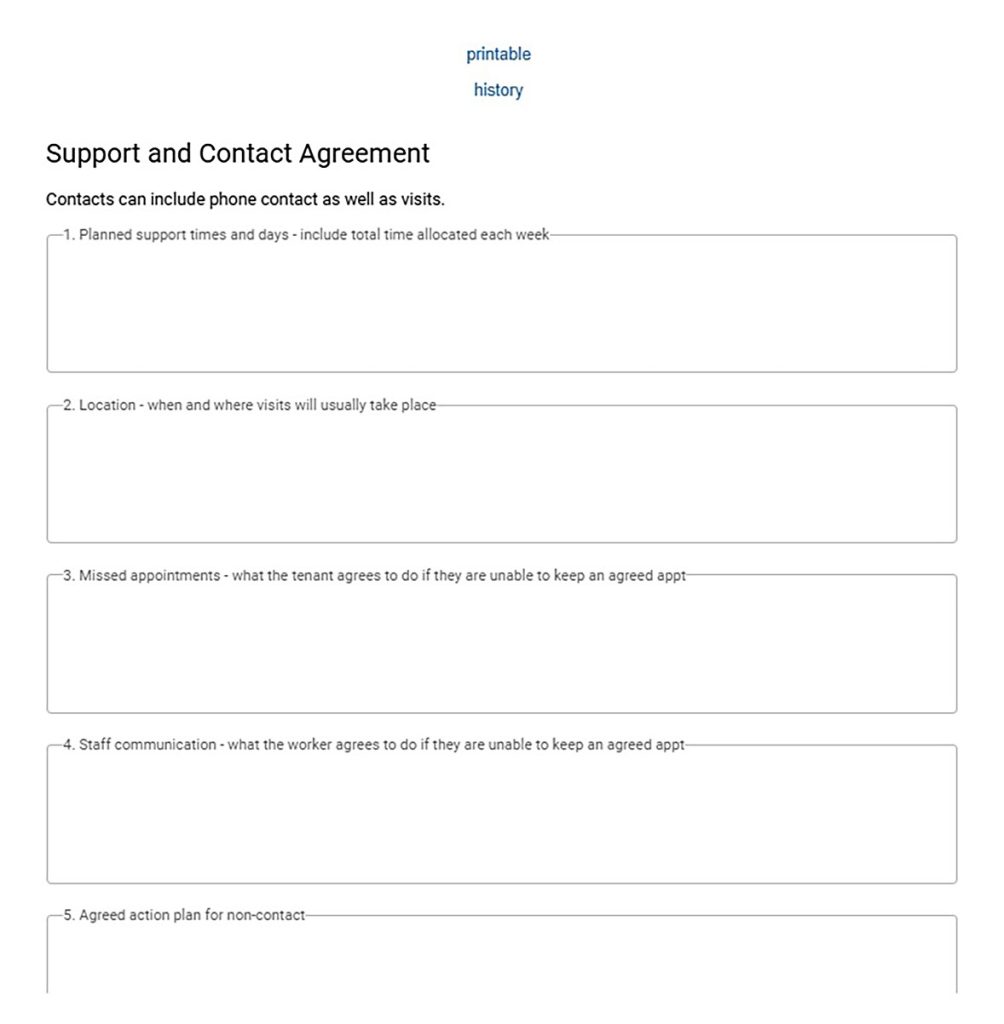
Support and Contact Agreement
This form allows entry of:
- Planned support times and days
- Location
- Missed appointments
- Staff communication
- Agreed action plan for non-contact
- Name of worker completing the agreement
- Date of agreement and tenant signature
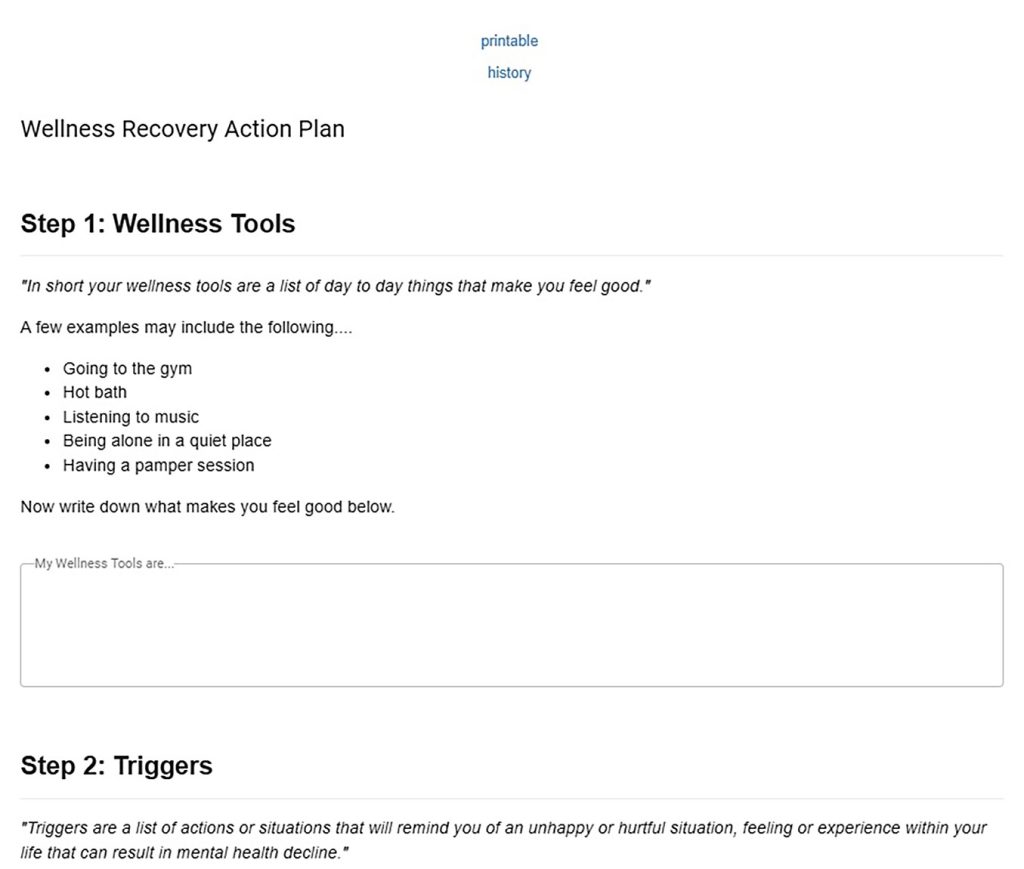
WRAP
This form allows entry of:
- Wellness tools
- Triggers and early warning signs of distress
- Decline and crisis planning
- An individual’s crisis plan do’s and don’ts
- Post crisis planning
- The individual’s supports and reminder
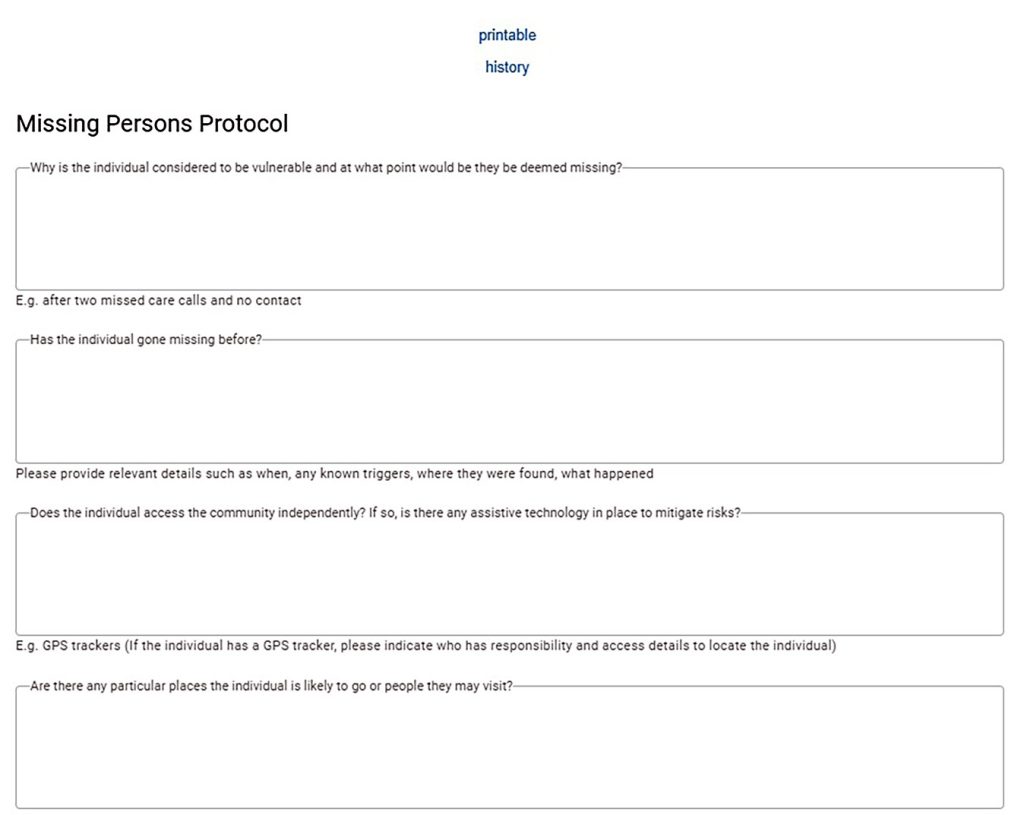
Missing persons protocol
This form allows entry of:
- Why the individual is vulnerable and when they’d be deemed missing
- History of the individual going missing and if they access the community
- Mitigating risks
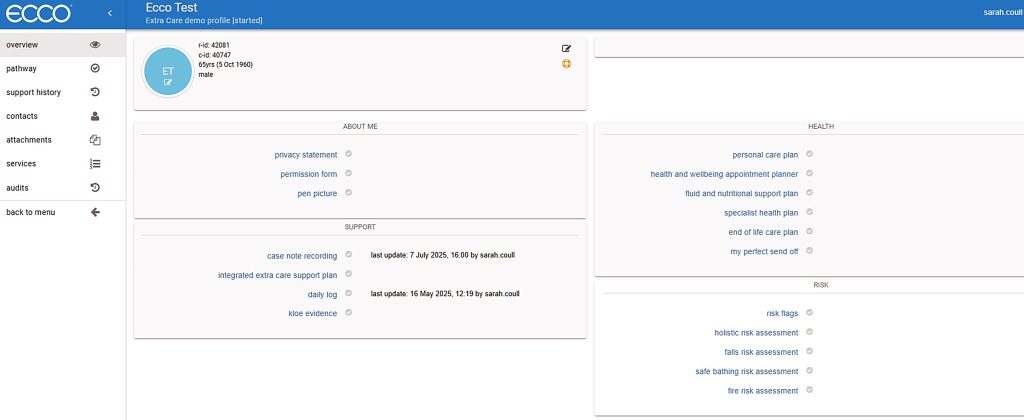
Extra Care Profile
This first image is how the profile might look for an individual being supported in Extra
Care services. Below you’ll also see some examples of the forms listed, one from each
section.
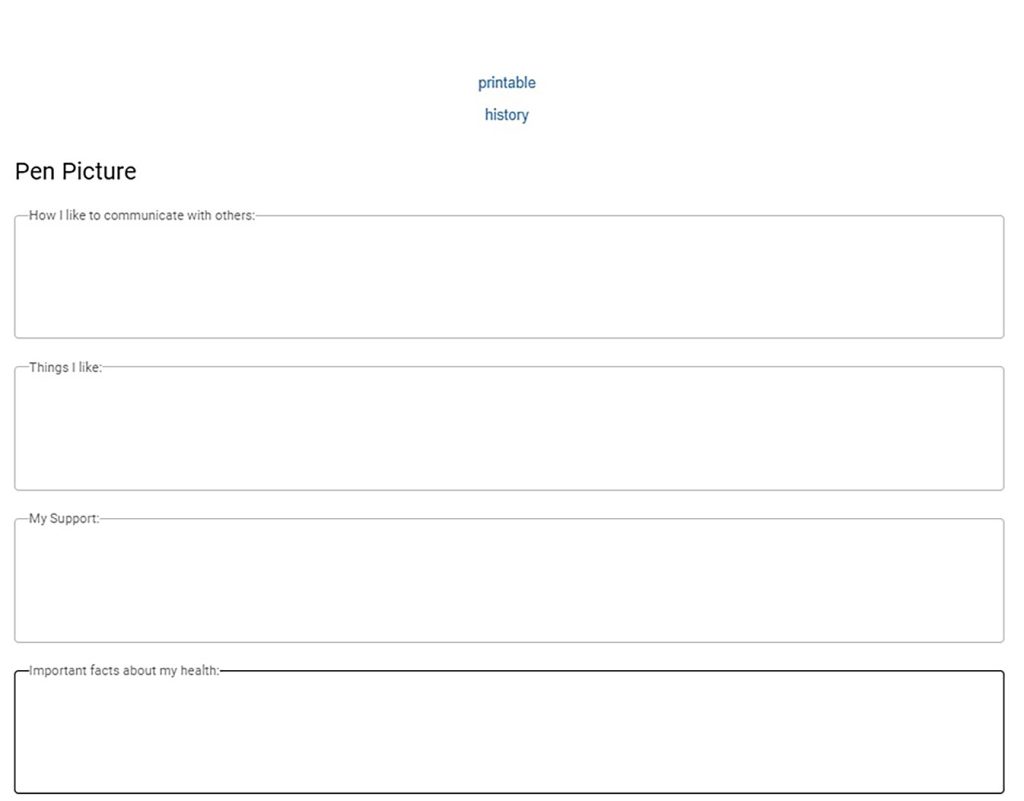
Pen Picture
This form allows entry of:
- How the individual communicates with others and what they like
- Support received by the individual and important facts about their health
- Things the individual doesn’t like and what people like about them
- People who are important to them and when and how to contact them
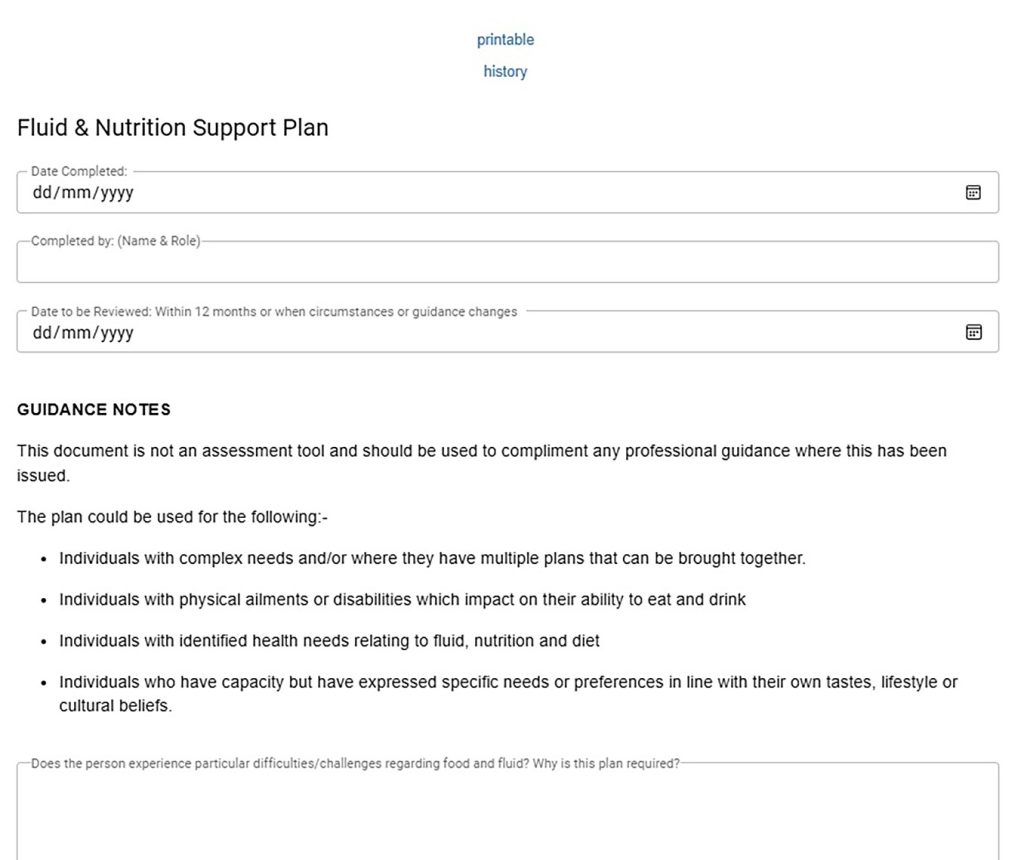
Fluid and Nutrition Support Plan
This form allows entry of:
- Date completed, by whom and date to be reviewed
- Why the plan is required
- Professional involvement
- Current identified risks
- Minimum daily food and fluid intake, dietary requirements
- Monitoring forms and when/who completes these
- Signs and symptoms of the person becoming unwell due to insufficient food and/or fluid intake
- Preparing food and fluids and specialist equipment
- Food and drink preferences and supporting the individual to eat and drink
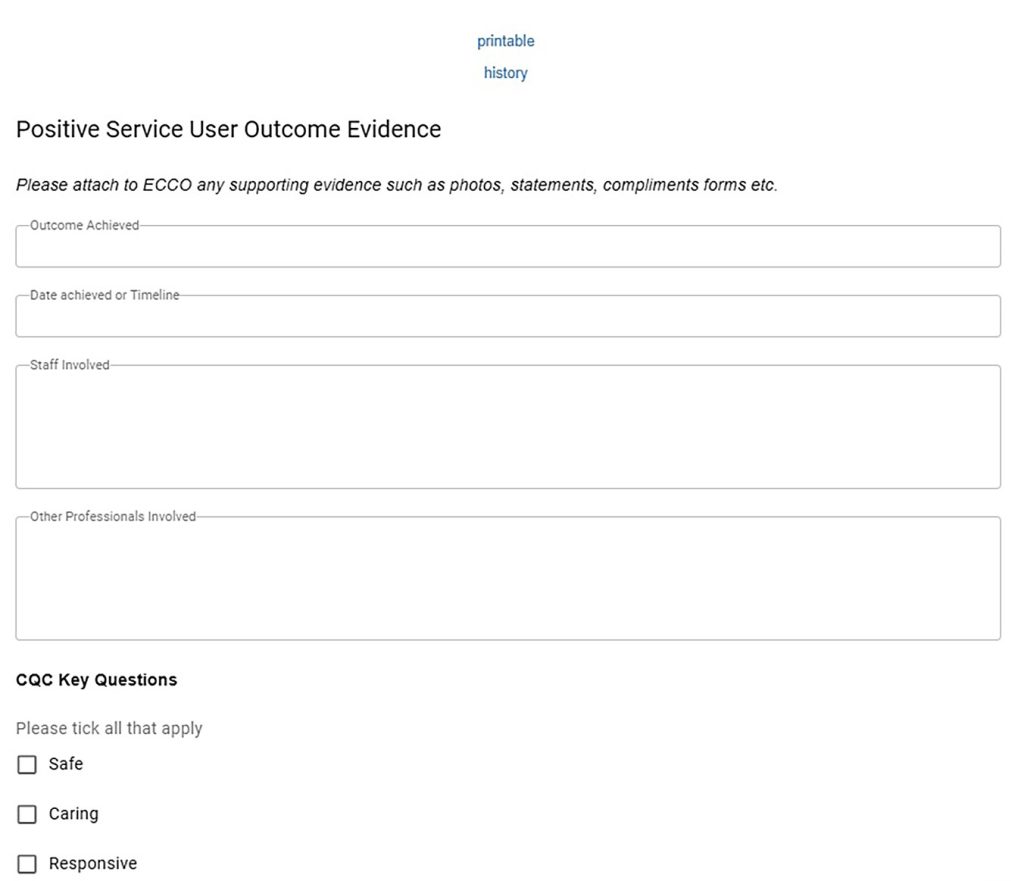
Kloe Evidence
This form allows entry of:
- Outcome achieved, date achieved, staff involved, other professionals involved
- CQC key questions
- Service user comments, family comments, professional comments
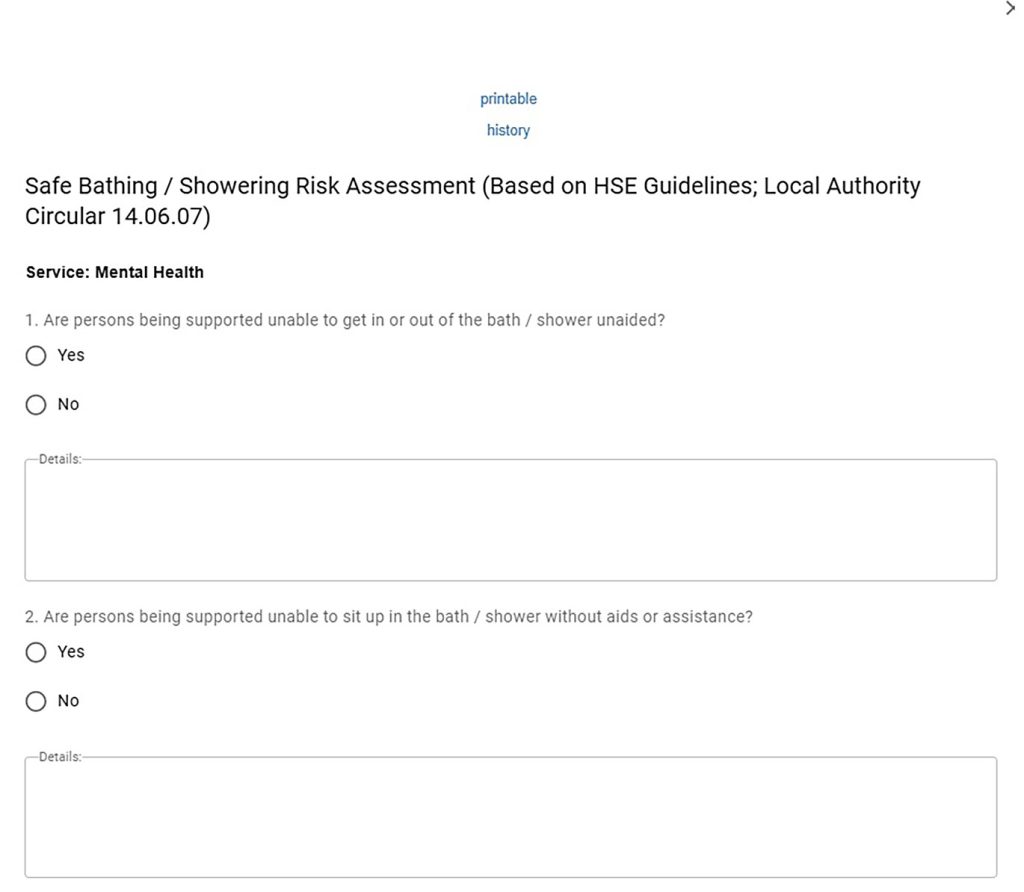
Safe bathing risk assessment
This form allows entry of if the:
- Individual is supported to get in or out of/sit up in the bath/shower and details
- Individual is supported to wash themselves and details
- Individual has reduced or impaired sensitivity to temperature and details
- Individual’s mental state means they may not recognise bath/shower is too hot
- Individual is capable of summoning assistance if needed
- If any aids limit the persons mobility in the bath/shower
- Risks to the person being supported are being managed, and how
Examples of Forms
That Would Apply to Most Services
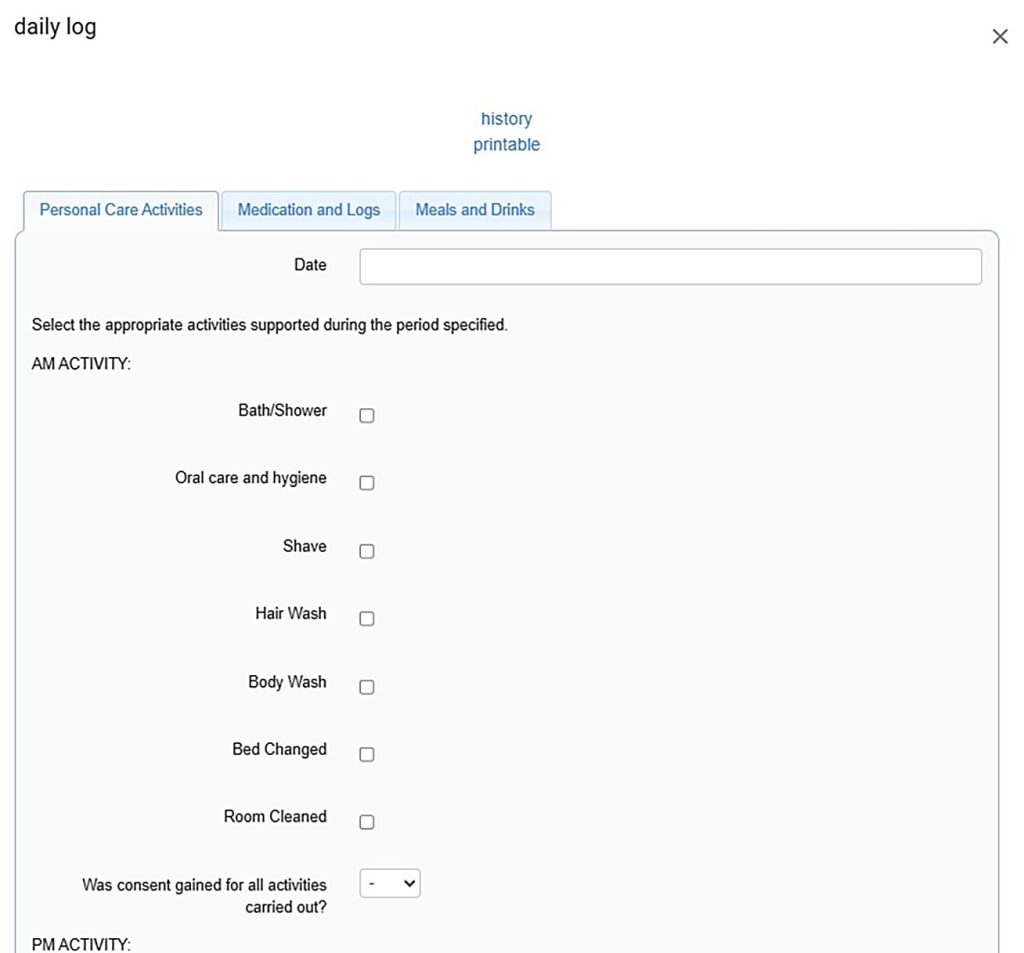
Daily log
This form allows entry of:
- Personal care activities
- Medication and logs
- Meals and drinks
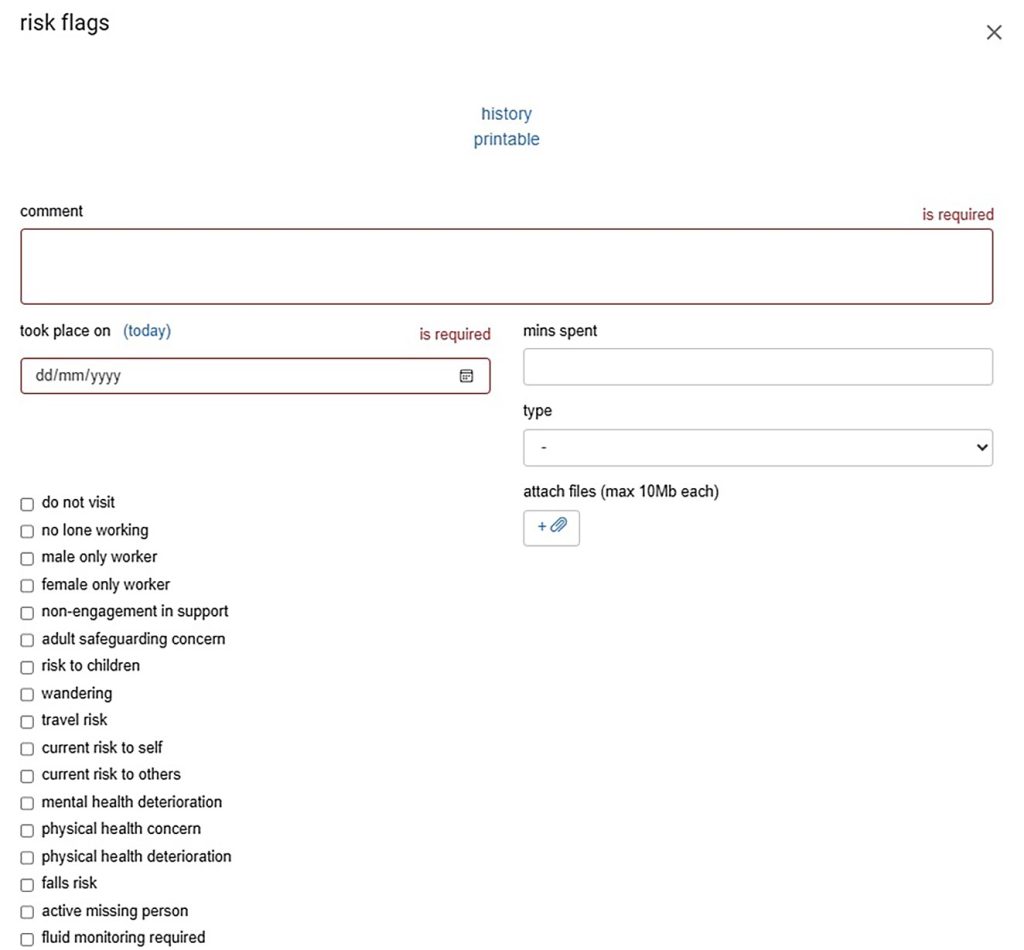
Risk Flags
This form allows entry of risks associated with the individual we are supporting.
Creative Support risk flags on ECCO – Updated July 2025
| Flag name | Description | Central Oversight/Monitoring |
|---|---|---|
| Acceptable behaviour contract in place | Currently is the subject of an acceptable behaviour contract usually used around tenancy and support following an incident | |
| Active MAPPA | MAPPA stands for Multi-Agency Public Protection Arrangements. It is a framework in England and Wales that outlines how various agencies, primarily the police, probation, and prison services, work together to manage the risks posed by certain offenders to protect the public. | |
| Active MARAC | MARAC stands for Multi-Agency Risk Assessment Conference. It’s a meeting where different agencies collaborate to assess and manage the risks faced by individuals experiencing domestic abuse, aiming to improve their safety and well-being | |
| Adult safeguarding concern | An adult safeguarding concern refers to any situation where there’s a reasonable cause to suspect that an adult with care and support needs is experiencing, or at risk of, abuse or neglect. This includes situations where they may be unable to protect themselves from harm due to their care needs. | |
| Alcohol abuse | Alcohol misuse is when an individual consumes alcohol in a way that is harmful, or when someone is dependent on alcohol. This flag can be used to indicate that the person is likely to appear under the influence of alcohol and therefore may heightened associated risks based on previous presentation or behaviours e.g. falls, verbal abuse, decline in mental or physical health. | |
| Arson risk | Factors present which suggest the service user is at risk of committing arson includes intentional or situational/environmental. | |
| At risk of radicalisation | Radicalisation, the process of adopting extremist views that support terrorism, can affect anyone, but some individuals are more vulnerable due to various factors. These factors can include a sense of grievance, isolation, a need for belonging, or susceptibility to extremist ideologies online. | |
| Banned visitor / visitor restriction | To be used when there is a formal visitor restriction in place usually as a result of police or safeguarding involvement but may also include specific housing rules regarding visitors. | |
| Bed rails required | Bed rails are raised sides, typically made of metal, that attach to a bed frame to help prevent people from falling out of bed. Please ensure this flag is used when bed rails are in use and these are supported by a thorough risk assessment and are maintained and used correctly. | The Quality Team maintain a register of bed rails in place |
| Bed sensor monitoring required | Bed sensors are devices that monitor bed occupancy and can be used to alert caregivers when a person leaves their bed unexpectedly or doesn’t return within a set time. They are designed to help prevent falls and enable independent living by providing an early warning system for potential issues. The flag should be used where these are required and must be used each night. This flag is used to alert staff that this is an area that needs monitoring. | |
| Bowel monitoring needed | Bowel monitoring refers to the process of observing and tracking bowel movements to assess digestive health and detect potential issues. This flag is used to alert staff that this is an area that needs monitoring | |
| Risk to children | Evidenced by a history or current concerns that would suggest the individual would present a risk to any child. Types of risks associated include abuse, neglect, and domestic violence, online or environmental risks. | |
| Choking hazard | A choking hazard is something that could potentially block a person’s airway, making it difficult or impossible to breathe. This can be due to the size, shape, or texture of an object or food item. Individuals with a SALT plan will detail how food and drink should be prepared; this flag should be used for anyone that could be at risk of choking. | The Quality Team monitor via the dysphagia log |
| Conviction for violence | The legal definition of violent crime refers to any act that involves the use or threat of force against another individual or property. It includes offenses such as homicide, assault, robbery, and offences committed with weapons. | Centrally monitored as part of the ‘Risk of offending register’ |
| infectious disease suspected | To be used in the event an individual has or is suspected of having an infections disease. The most common causes are viruses, bacteria, fungi and parasites. Infectious diseases usually spread from person to person, through contaminated food or water. Examples include Norovirus, Covid-19. This flags advises staff to take caution. | |
| current S37/41 MHA | Section 37/41 of the Mental Health Act 1983 is a legal framework used by courts to detain individuals in a hospital for treatment rather than sending them to prison for an offence. Section 37 allows for a hospital order, while Section 41 adds restrictions. This flag is to be used when the individual is subject to either order. | Centrally monitored as part of the ‘Risk of offending register’ |
| do not visit | This flag is to be used to alert staff that under no circumstances should the individual be visited for the time being. This should be removed when measures are put in place to reduce risk i.e 2:1 or a change in risks. | |
| at risk of falls | Being “at risk of falls” means a person has an increased chance of falling due to various factors, making them more vulnerable to slips, trips, and stumbles. These factors can be related to age, health conditions, medications, mobility, and environmental hazards. This flag alerts staff that the individual is at risk so they can ensure they follow any specific plans closely and remove any risks. | |
| female only worker | Can only be supported by a female worker – this should be captured in their statutory support plan. | |
| fire setting conviction | Has been convicted of an offence relating to fire setting including arson with or without intent. | Centrally monitored as part of the ‘Risk of offending register’ |
| fluid monitoring required | Fluid monitoring refers to the process of monitoring and recording fluid intake to ensure proper hydration and electrolyte balance. This flag is used to alert staff that this is an area that needs monitoring and includes the calculation of fluid balance from measuring the amount of fluid entering the body and comparing it to the amount of fluid leaving the body. | |
| frequent 999 caller or presentation at A&E | This flag should be used when the individual has displayed a pattern of frequent calls to the emergency services and/or frequent presentation at A&E when attendance is not recommended. Also known as high-intensity use, this is when an individual attends the emergency department more often than what is considered typical. This can be a sign of unmet healthcare, social, or practical needs, often during times of personal crisis. | Centrally monitored as part of the ‘Risk of offending register’ |
| history of violence or aggressive behaviour | Any previous incidents or reports of violence or aggression including information from previous providers identified at assessment stage or as a result of incidents or interactions with the individual. The flag alerts staff that this is a known, previous risk and to ensure they read the risk management plan | Centrally monitored as part of the ‘Risk of offending register’ |
| male only worker | Can only be supported by a male worker – this should be captured in their statutory support plan. | |
| Moving and handling risk assessment | A moving and handling risk assessment identifies potential hazards associated with moving and handling tasks, evaluates the risks, and implements control measures to minimise injury. This flag alerts staff to being aware this is in place and they should familiarise themselves with the plan and ensure they are trained. | |
| mental capacity considerations | Mental capacity refers to a person’s ability to understand information, weigh it up to make a decision, and communicate that decision. It’s not an all-or-nothing concept; a person might have capacity for some decisions but not others. To be used when staff should refer to mental capacity documentation when decisions need to be made. | |
| mental health concern | To be used to indicate that there is an acute current concern regarding an individuals mental health which is out of the norm for this person and an area that staff should be aware of. | |
| mental health deterioration | For individuals with a chronic or diagnosed mental health condition to be used to highlight when the condition or overall mental health of the individual is in decline and there are concerns for the individual that need to be acted on. | |
| active missing person | When an individual has been reported as missing or is due to be, for cases where the individuals whereabouts cannot be established. To be removed when the welfare and location of the individual is known. | |
| No lone working | To alert staff and volunteers that no lone working should take place whilst the flag is selected and that any support is at least 2:1 | |
| Do not contact | This flag is to be used to alert staff that under no circumstances should the individual be contacted by any means including phone, email, letter, text for the time being. This should be removed when measures are put in place to reduce any identified risks or reinstatement of consent to contact. | |
| risk of non-engagement in support | Non-engagement can hinder the identification and management of risks, potentially leading to harm and abuse to occur. This should be used where there is a concern or history surrounding non-engagement where this is a current concern. | |
| Peep (Personal Emergency Evacuation Plan) | A Personal Emergency Evacuation Plan (PEEP) is a means by which arrangements are made to ensure that an individual has the right supports in place to evacuate and the steps needed for staff to take should an emergency situation occur. This flag is to be used when staff are required to support an individual with evacuation as part of their PEEP. | |
| Physical health concern | To be used to indicate that there is an acute current concern regarding an individuals physical health which is out of the norm for this person and an area that staff should be aware of. | |
| Physical health deterioration | For individuals with a chronic or diagnosed physical health condition to be used to highlight when the condition or overall physical health of the individual is in decline and there are concerns for the individual that need to be acted on. | |
| PPE essential | To be used when Personal protective equipment commonly referred to as “PPE”, is required to be utilised or worn by staff to minimise exposure to hazards. | |
| Prevent | Prevent identifies individuals at risk of radicalization and provides support to help them disengage from extremist ideologies and activities. Referrals are assessed and anyone who is suitable is offered support. This flag is for anyone working with or open to Prevent. | Centrally monitored as part of the ‘Risk of offending register’ |
| Risk from pets | Where there are concerns or risks associated with the individual having pets in or around the home or accessing the community. Examples include: banned breeds, risks related to cleanliness of the property, trip hazards related to animals. | |
| Risk of going missing, getting lost or wandering | Flag to be used where there is a risk or previous concern regarding the individual going missing including from wandering or getting lost or choosing | |
| Risk of verbal abuse | To be used where there is a current concern or history of verbal abuse directed towards anyone including staff, other service users, members of the public, family etc.. | |
| Risk of polysubstance use | Polysubstance use is when an individual consumes a combination of drugs or substances for example drinking alcohol and taking cocaine. This flag can be used to indicate that the person may appear under the influence and that they are at an increased risk from co-use of substances | |
| Risk of malnutrition | To be used where there are current concerns regarding malnutrition where the individual isn’t assessed as having adequate nutrition. This flag should alert staff so they can refer to health management plans to manage the risks. | |
| Risk of violence | To be used for current concerns regarding risk of violence to any person. The flag alerts staff that this is a risk and to ensure they read the risk management plan which will should cover who is at risk and how and steps required to manage the risks. | Centrally monitored as part of the ‘Risk of offending register’ |
| Current risk to others | To be used for non-specific risks to others including family members, partners, friends, professionals, members of the public. This should be to share current concerns regarding risk towards these groups of people. The flag alerts staff that this is a risk and to ensure they read the risk management plan which will should cover who is at risk and how and steps required to manage the risks. | Centrally monitored as part of the ‘Risk of offending register’ |
| Current risk to self | To be used for current concerns regarding risk to self that do not include self-harm or suicide. The flag alerts staff that this is a risk and to ensure they read the risk management plan which will should cover how and why they are at risk and steps required to manage risks. | |
| Current risk to staff and volunteers | To be used for non-specific risks to Creative Support staff and volunteers. This should be to share current concerns. The flag alerts staff that this is a risk and to ensure they read the risk management plan surrounding contact with staff and/or volunteers. | |
| At risk of seizures | To be used where the individual is known to experience any type of seizure that staff should be aware of. Heath and support plans should include steps to take and how to record however the flag is an alert to staff that the individual is at an increased risk of experiencing a seizure. | |
| Self harm risk | To be used where there are factors present and a current concerns or a history of self-harm or talk of self-harm that staff should be aware of to closely monitor. | |
| Self isolating | A flag to indicate where an individual is self-isolating, often to avoid catching or transmitting an infectious disease. The flag should be removed when the isolation period has ended however interim support plans should be made clear for the duration of the isolation. | |
| Independent with medication administration | The individual has no support with medication including no prompts, support to order or administer. To be used to indicate that the individual is independent in this area currently. | |
| Sexual offence conviction – child | Has a sexual conviction against a child. Centrally monitored | Centrally monitored as part of the ‘Risk of offending register’ |
| Sexual offence conviction – adult | Has a sexual conviction against an adult. Centrally monitored | Centrally monitored as part of the ‘Risk of offending register’ |
| New statutory risk assessment | This is a flag that indicates a new statutory risk assessment has been received and that staff should familiarise themselves. A new risk assessment may be the result of a change or incident or a reduction in risks based on progress and engagement over time. ‘New’ is a period no more than 3 months for this purpose so should be removed after that as it will be included in revised risk assessments. | |
| Legal conditions in place eg restraining order or subject to a shpo | To be used where there is a court ordered restriction in place for example a restraining order that can include areas to avoid and a SHPO (Sexual Harm Prevention Order) that includes prohibitions e.g travel, internet use. A copy or explanation of any orders the individual is subject to should be accessible for staff to check in the event of a breach. | Centrally monitored as part of the ‘Risk of offending register’ |
| Substance misuse | Substance abuse, also known as drug abuse, is a patterned use of a drug in which the user consumes the substance in amounts or with methods which are harmful. This flag can be used to indicate that the person is likely to appear under the influence of substances and therefore may heightened associated risks based on previous presentation or behaviours e.g falls, verbal abuse, decline in mental or physical health | |
| Suicide risk | To be used where there are factors present and a current concerns or a history of suicide or talk of suicide that staff should be aware of to closely monitor. | |
| Tissue viability risk | Tissue viability risk refers to the potential for skin and underlying tissue damage, most commonly pressure sores, which can occur when sustained pressure on the skin restricts blood flow. Individuals with limited mobility or who have prolonged pressure on certain parts of the body can be more at risk. This flag alerts staff to familiarise themselves with any health action plans in place to ensure they monitor and follow skin care and reposition regularly. | |
| Travel risk | To be used if the individual is at heightened risk when travelling or is due to travel to a specific location that presents risks e.g natural disasters, political instability. | |
| Under 19 | To clearly identify that the individual is currently under 19 and is typically considered an adolescent, transitioning from childhood to adulthood. To be used to indicate age to increase staff awareness of factors and risks associated. | |
| Under a mental health team | This is to be used when the individual has statutory mental health services involved regardless of if they have a named professional or not to indicate wider involvement. | |
| Unsafe property condition | Flag to alert staff to potential risks in the home and surrounding environment e.g unsafe fuse box, excessive damp, smoking | |
| Review support notes – vital information | To be used as a short term flag where staff need to review recent notes before supporting the individual potentially in light of a serious incident or significant change. To be removed when all staff are aware and information to be captured accordingly into usual assessments and/or plans. | |
| Child safeguarding involvement | This should be selected if the individual has active child safeguarding involvement. | |
| Risk of reoffending – repeat offender | Where an individual has a history of repeat offending and is engaging in patterns of behaviour that could indicate a return to offending this flag should be used for our central team to monitor. Where there is a risk to others, the team may be in touch to offer support where this is flagged. | Centrally monitored as part of the ‘Risk of Offending Register’ |
| On the sex offenders register | Following a sexual conviction, certain individuals are required to keep the police informed of certain information including where they live, this information is added to the sex offenders register. Individuals reporting requirements depend on the sentence they receive. | Centrally monitored as part of the ‘Risk of Offending Register’ |
Outcome monitoring
You have the option to use a Creative Support template as a Custom Form, or the ECCO version which allows you to link needs with support.
Creative Support forms
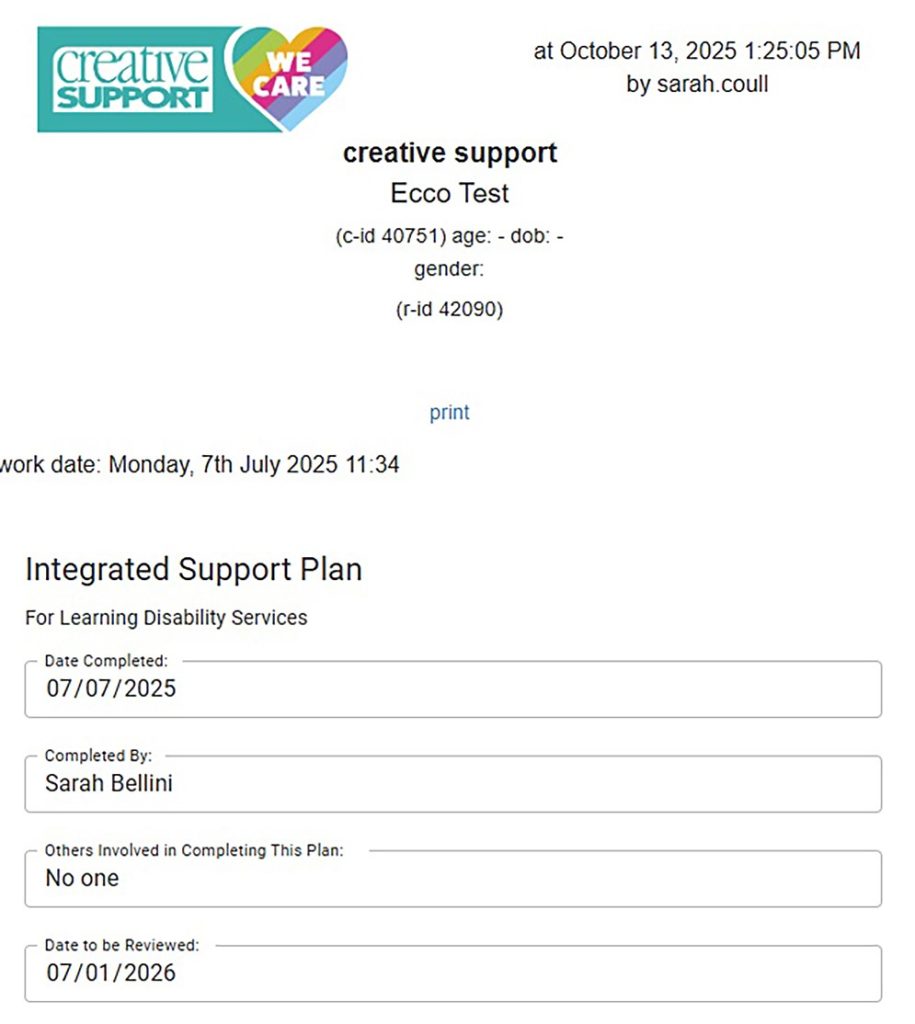
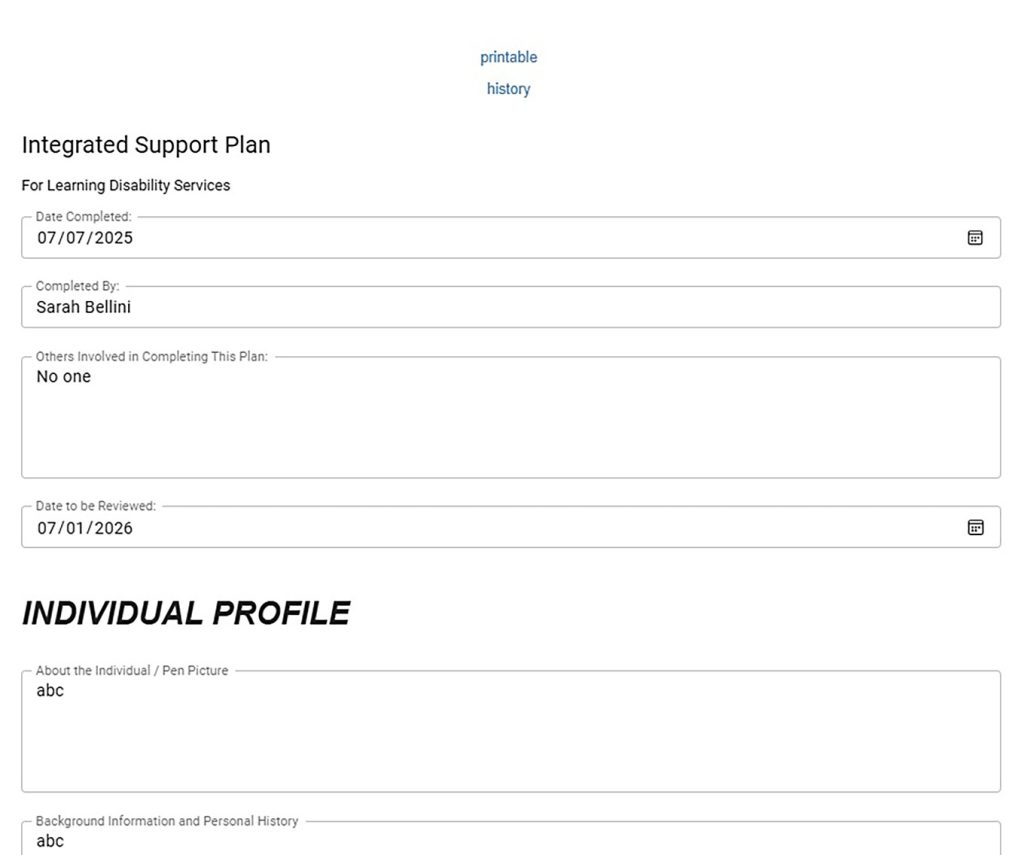
Integrated Support Plan
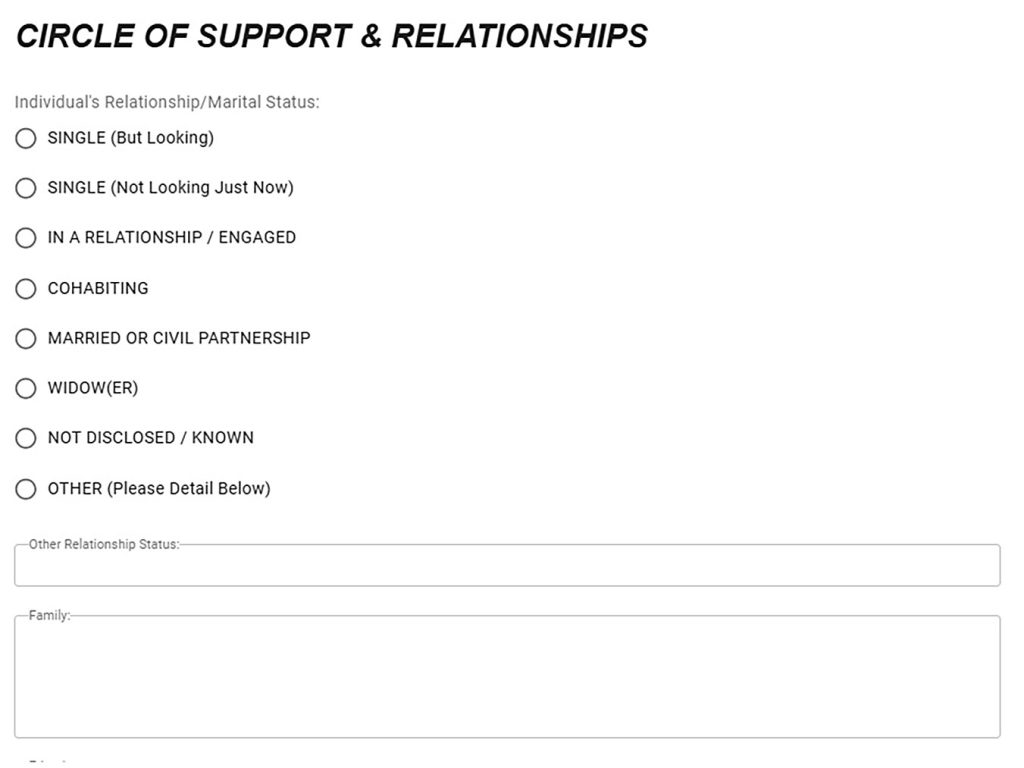
You can use an existing template for your support plans which have been created for ECCO. Example screenshots below.
These forms are custom, and you are able to adapt them to suit your service requirements.
The benefit to this form is that it is sticky and the information remains on screen to view, and then you can open history to view the document’s previous versions. It also prints well and therefore easy to share with others.
ECCO linked needs assessment/support plan Needs Assessment
The needs assessment is completed with a client in order to record their support needs and to generate the support plan.
The layout of the screens for the needs assessment and support plan screens are very similar:
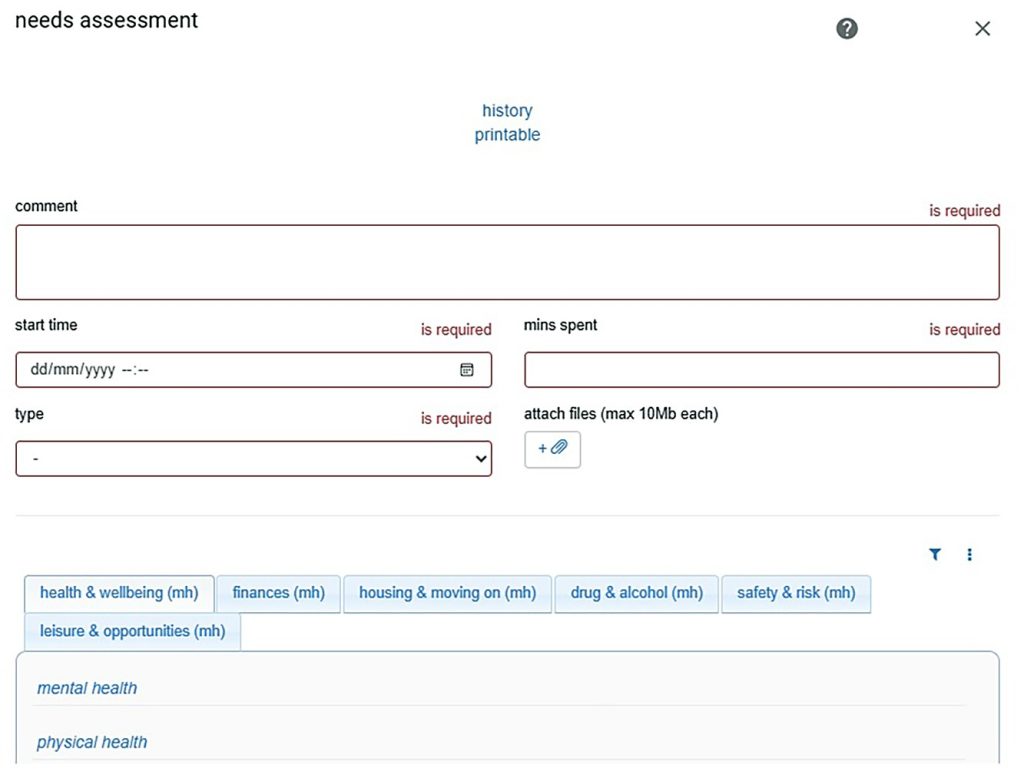
At the top of the page there is a case notes section, or “comment” box. You will also see additional fields to record key information for the audit trail of recording of support, such as: date & time, length of time spent, and ‘type’ of support (e.g. one-to-one, admin, agency meeting).
This is where you record the date you completed this piece of work, how long you spent doing it in minutes, and how that support was delivered. These fields are essential as they generate a reportable support history for the client.
Below this you will see a number of tabs listing the different outcome areas of your needs assessment. These will have been configured to match the support provision your service offers.
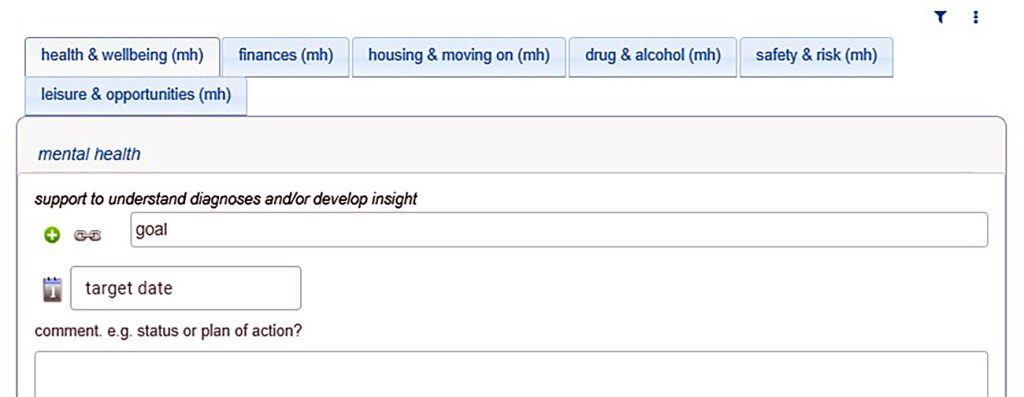
You can navigate through these tabs to find support needs. Under each support need heading, there is a free text box: this is used to capture specific details about individual client’s needs, outcomes, aspirations, agreed support actions, and achievements.
Your needs assessment may also have a ‘goal’ box too – to record a specific one liner that personalises the support area for the client, and a target date. Ensuring that this needs assessment creates a SMART support plan.
Support Plan
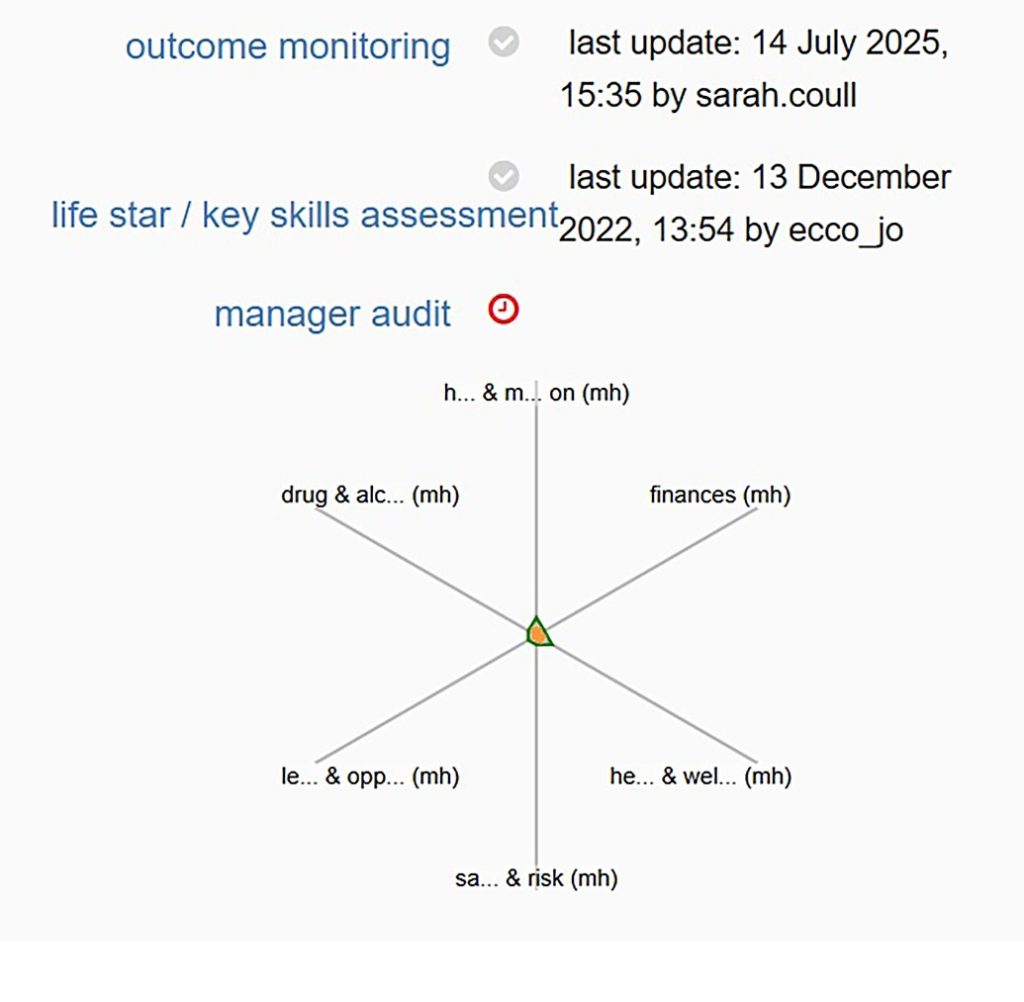
When the needs assessment has been completed, this will show a star chart to identify where the support needs sit within the outcome areas (indicated with a green line). The total size of the green area represents the overall level of need for that client, and the shape indicates where the greatest balance of need lies for that client:
The support plan screen is very similar in layout to the needs assessment screen. It differs in that it only includes the support areas that have been identified as needs, and allows support goals to be marked as achieved.
All support related activities or events (meetings, phone calls, correspondence, support work) should be described and logged via the support plan screen. Each activity or event may relate to one or more of the identified support needs, and can be linked accordingly. This creates a clear history of progress towards achieving the support goals set at the outset of support planning.
At the top of this screen you’ll see the usual “comment” box and additional recording requirements (e.g. date & time, type of support etc.) This is then followed by the support tabs and within each tab, you’ll see the support needs which were selected during the needs assessment.
For the recording of support, you can:
- Simply fill in the top section without referencing any support needs (it could be a quick phone call you are documenting, for example).
- LINK the comment to the support need to indicate what has been worked on.
Reporting
You can access reports via the left hand menu of the landing page:
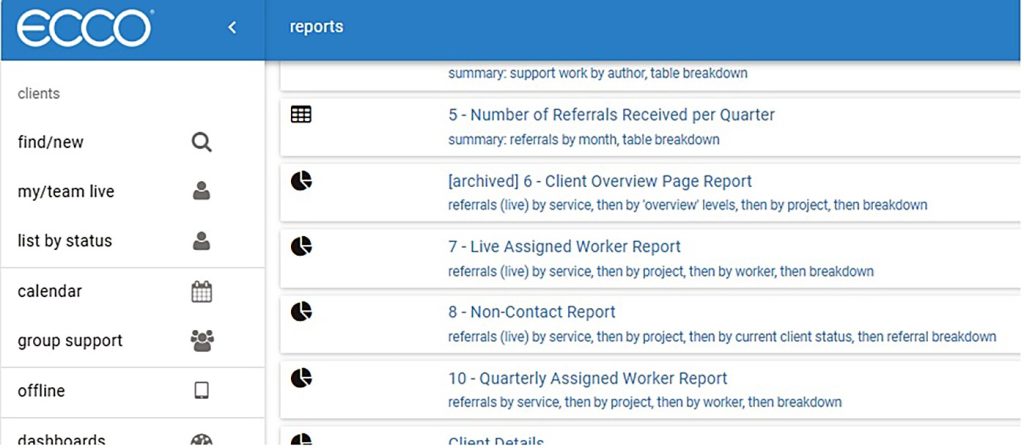
Below are examples of reports that can be pulled from this function. Bespoke reports can
also be created on request if an existing report doesn’t already provide the information.
Report 8: Non-Contact

This non-contact report is to monitor client wellbeing and updates through contact entries in summary of notes/support notes.
The report can be run by seniors with reports permission to check client’s wellbeing status and review last recorded support.
To pull the report:
1. Click into the non contact report.
2. Click into search criteria, it will give the option to filter by service as below, select the relevant service from the drop down and click ‘UPDATE’, then the play button.
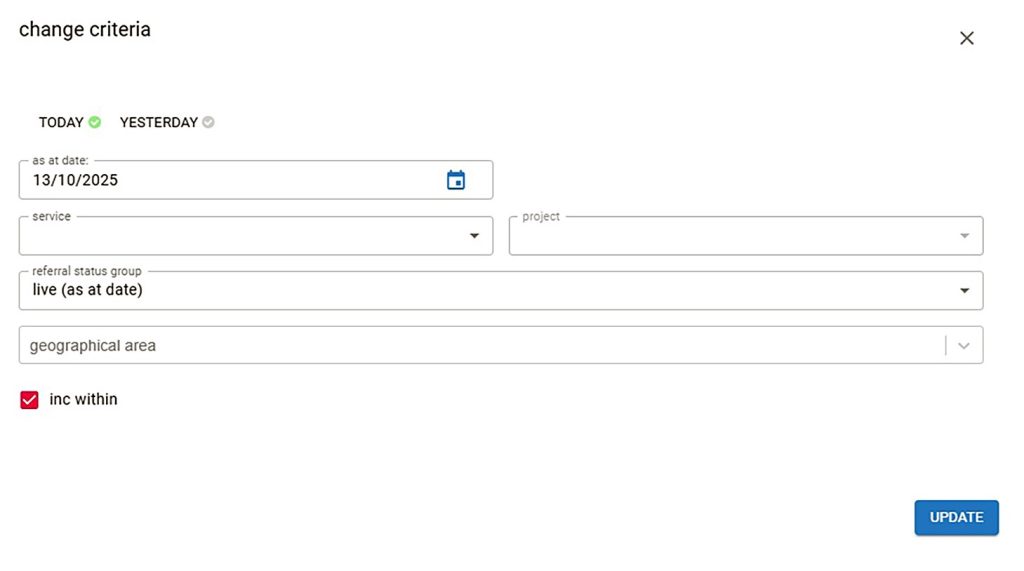
3. On the pie chart, click ‘select all’, then repeat for the two following pie charts.
4. Click the Excel button which will export the whole list into an excel spreadsheet.
5. Highlight potential flags, client status that hasn’t been updated in 24 hours, and also concerning statuses of wellbeing.
6. All flags should be checked through support history notes to make sure they have been seen in line with their history and any concerns in wellbeing are being actioned.
22. Support History

This report allows you to access support work entries by service, and a breakdown of support work including support in minutes between chosen time period.
To pull the report:
- Click into the support history report.
- In the search criteria, choose date range and then filter by service and click ‘UPDATE’, and then play.
- Click select all on the pie chart and then you are able to click ‘excel’ and export to a spreadsheet.
- On the pie chart click ‘select all’ as seen in picture below, which will show a breakdown of support work for that service and time period.
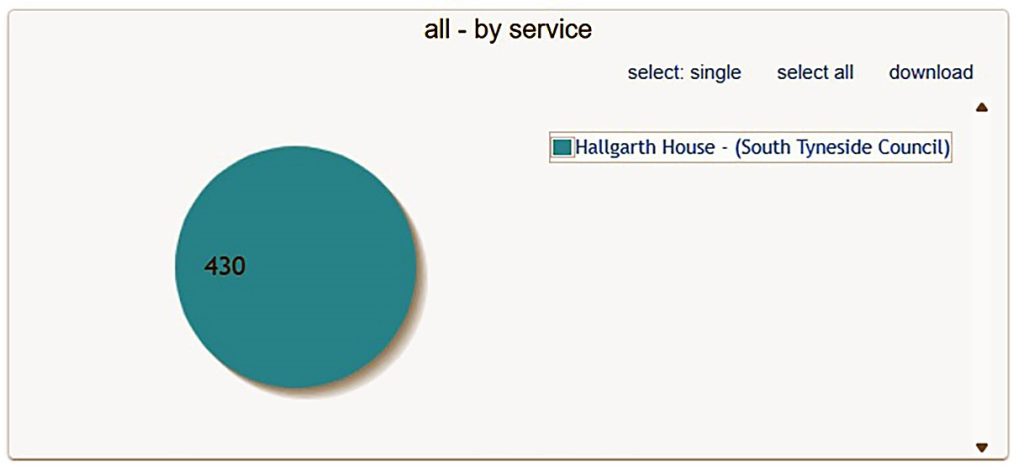
- Click ‘excel’ which will then pull the data into a spreadsheet and which can then be
edited and filtered Case Studies
Case Studies
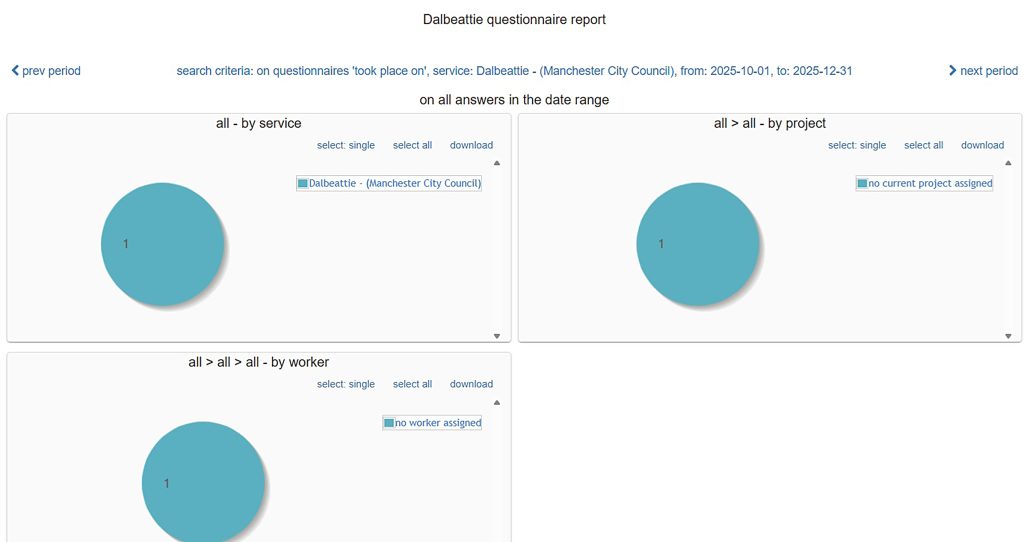
Custom forms and questionnaires can be created to capture information as part of local authority requirements. Here are some examples of how the data pulls through into a report.
Dalbeattie – Manchester City Council
The local authority wanted a report on Outcome Monitoring at 8 different stages:
- Entry assessment
- Review 1
- Review 2
- Review 3
- Review 4
- Review 5
- Review 6
- Exit assessment
The form is sticky and then further versions can expand / amend the existing version on the form.
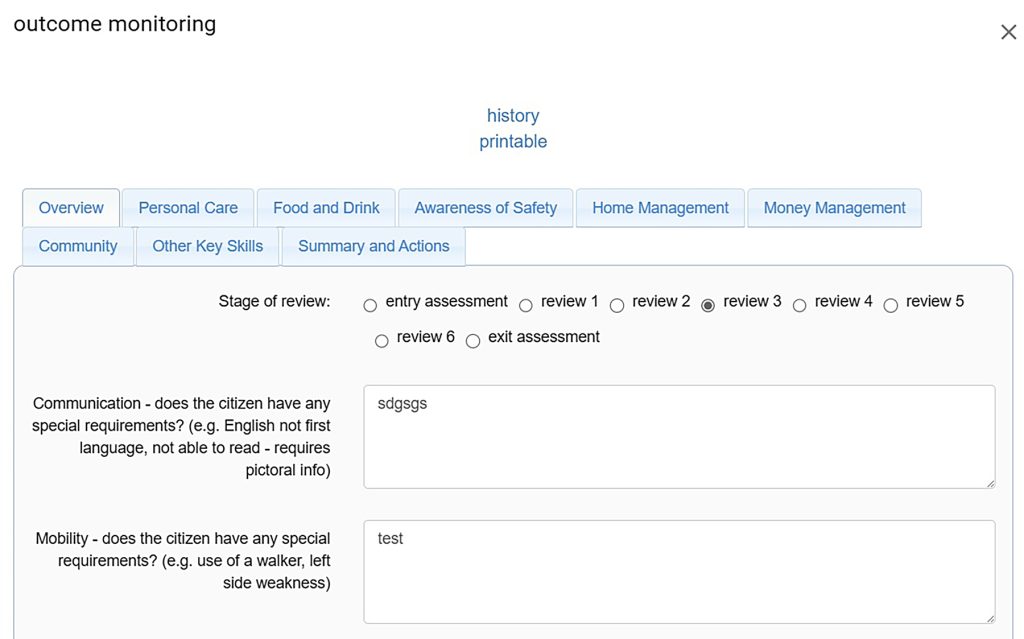
This information then pulls through to a report which can be pulled through to an Excel report:

Leicester ILS Supported Housing – (Leicester City Council)
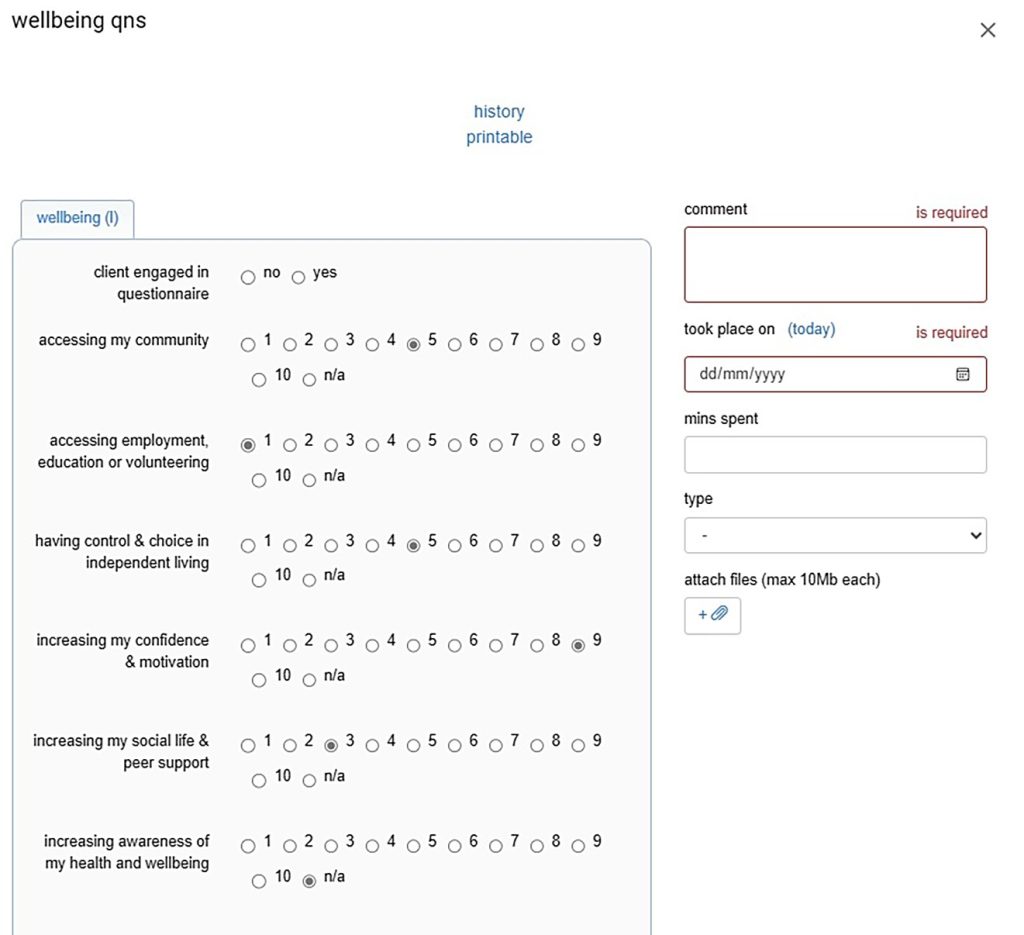
Commissioners wanted a report of data for wellbeing questions:
- Whether or not the client engaged with the questionnaire
- Marking 1-10 or n/a for different questions e.g ability to live more independently The form is sticky and previous versions can be accessed through the history function.
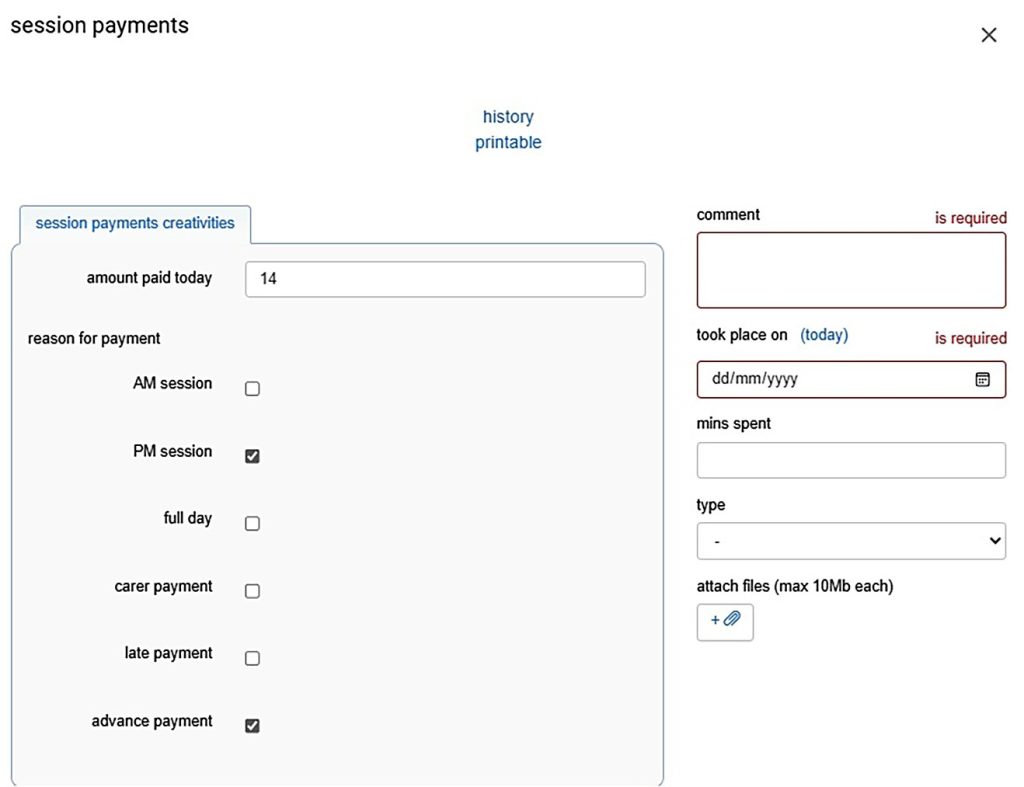
Creativities – (Leeds City Council)
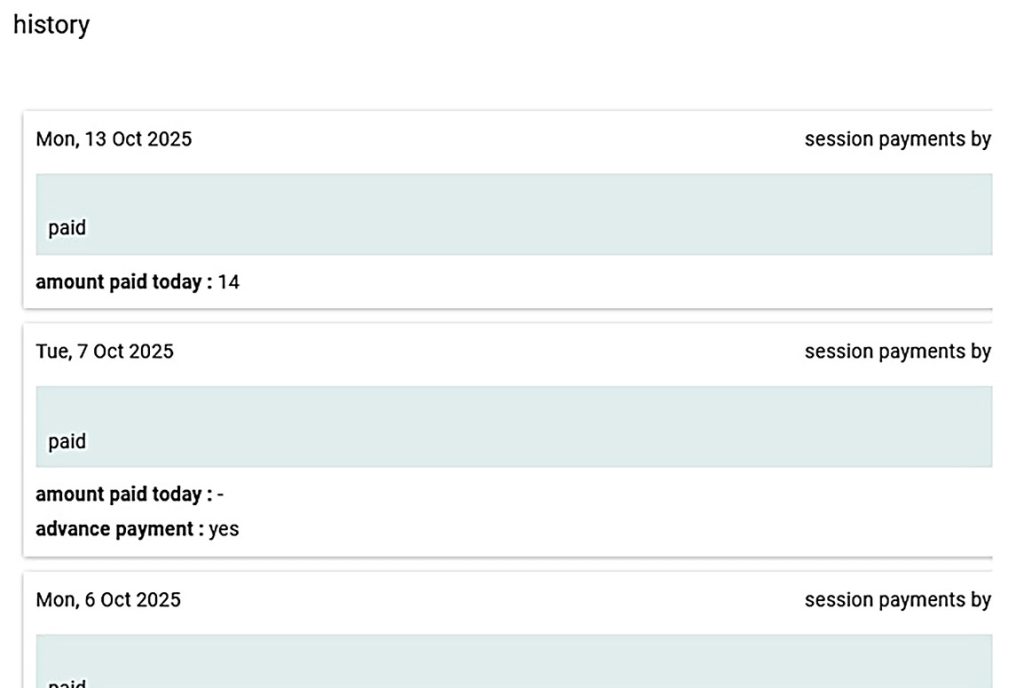
The service wanted to track activities in the group function, and take payment details for each client through their profile. Within each client profile they wanted to know details of the session they attended, what kind of payment and amount. The form is sticky and previous versions can be accessed through the history function.
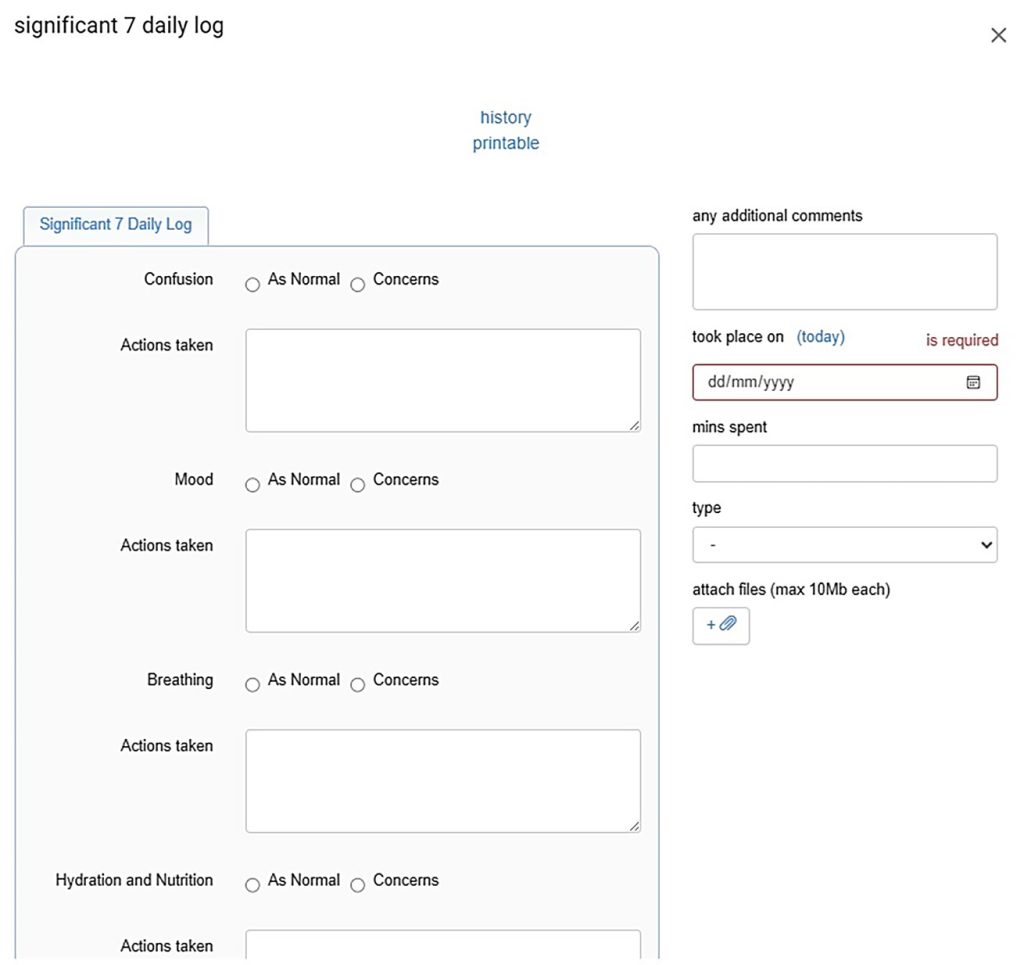
Burnet House – (London Borough of Camden)
The service wanted to capture key areas for a daily log of information, whether or not it was as normal, or concerns, and any action taken:
- Confusion
- Mood
- Breathing
- Hydration and nutrition
- Pain
- Skin
- Toilet
- Mobility